Quick start
Five steps from zero to a live campaign that fires postbacks. You can do every step from the web dashboard or the Telegram bot — pick whichever feels natural.
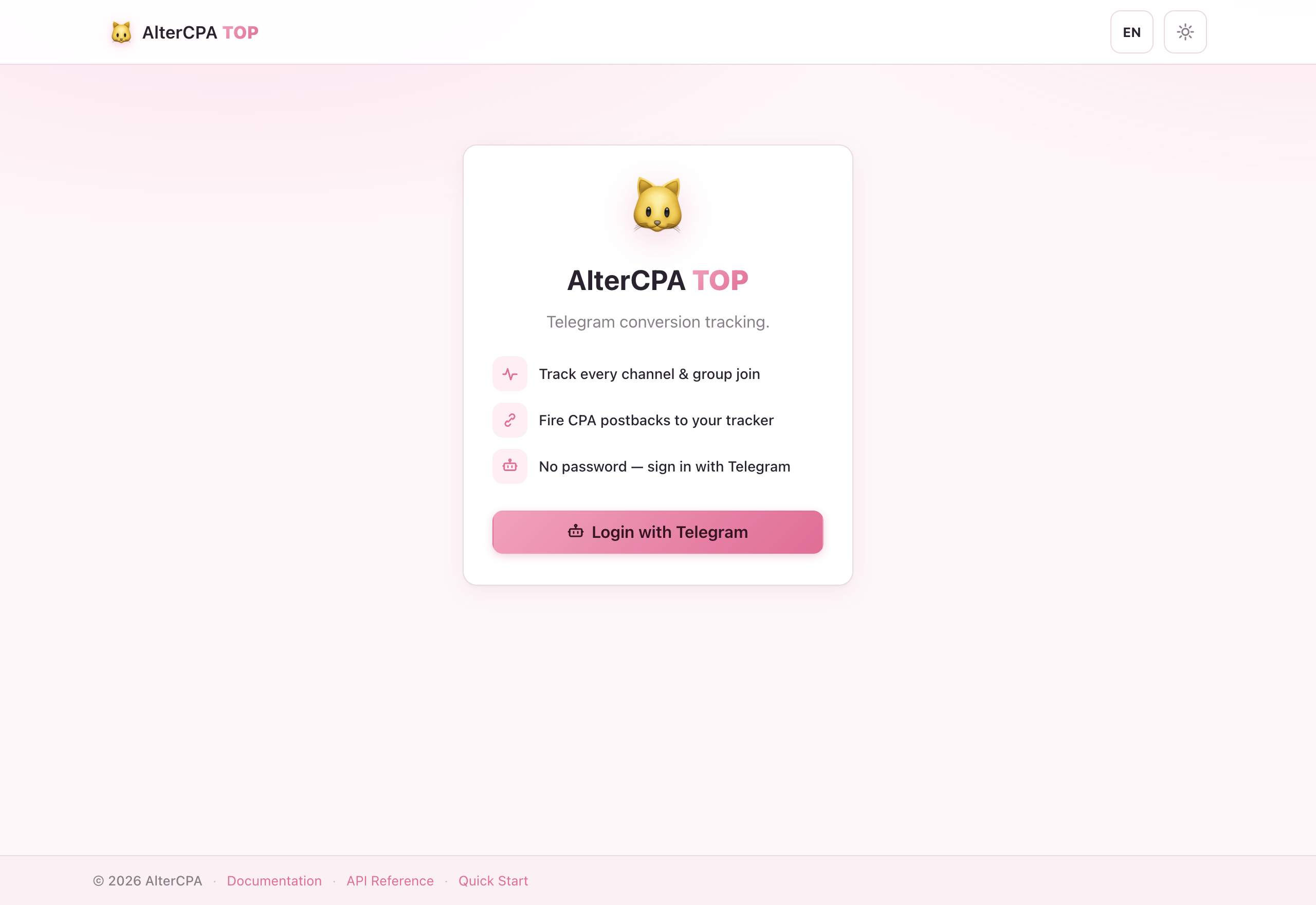
Step 1 — Sign in
Open @altercpatopbot in Telegram and press Start. Your account is created automatically — no email, no password.
You’re instantly logged in inside the bot. To use the web dashboard, tap 🌐 Open web version in the bot’s Main Menu — a one-time login link takes you straight in.
Step 2 — Connect your bot
- Open @BotFather, send
/newbot, and follow the prompts to create a new Telegram bot. - BotFather gives you an API token — a long string like
7123456789:AAH_abc123.... Copy it. - In AlterCPA TOP: go to Bots → Add bot, paste the token, and confirm.
We validate the token and register the webhook automatically. Your bot is now connected.
→ Bots
Step 3 — Make the bot a chat admin
Your bot must be an administrator of the channel or group you want to track. Without admin rights, it can’t see join and leave events.
In your Telegram channel/group: Administrators → Add Administrator → search your bot by username → confirm. Default admin rights are fine.
The chat will appear in the campaign editor as soon as the bot has been promoted. It usually takes a few seconds.
Step 4 — Connect your tracker
Fastest — AlterCPA Lite one-click setup:
- Open Profile (web) or Settings → Connect tracker (bot).
- Pick your AlterCPA Lite host (e.g.
altercpa.red) and paste your tracker API key ({user_id}-{api_key}from the tracker’s Profile). - Click Connect — we configure all five global postback templates automatically.
Using another tracker? Go to Tracker integration and follow
the page for your tracker. The short version: find your tracker’s click id macro
(e.g. {subid} in Keitaro, {clickid} in Binom), then set the five postback
templates in your Profile.
Step 5 — Create a campaign & grab the deep link
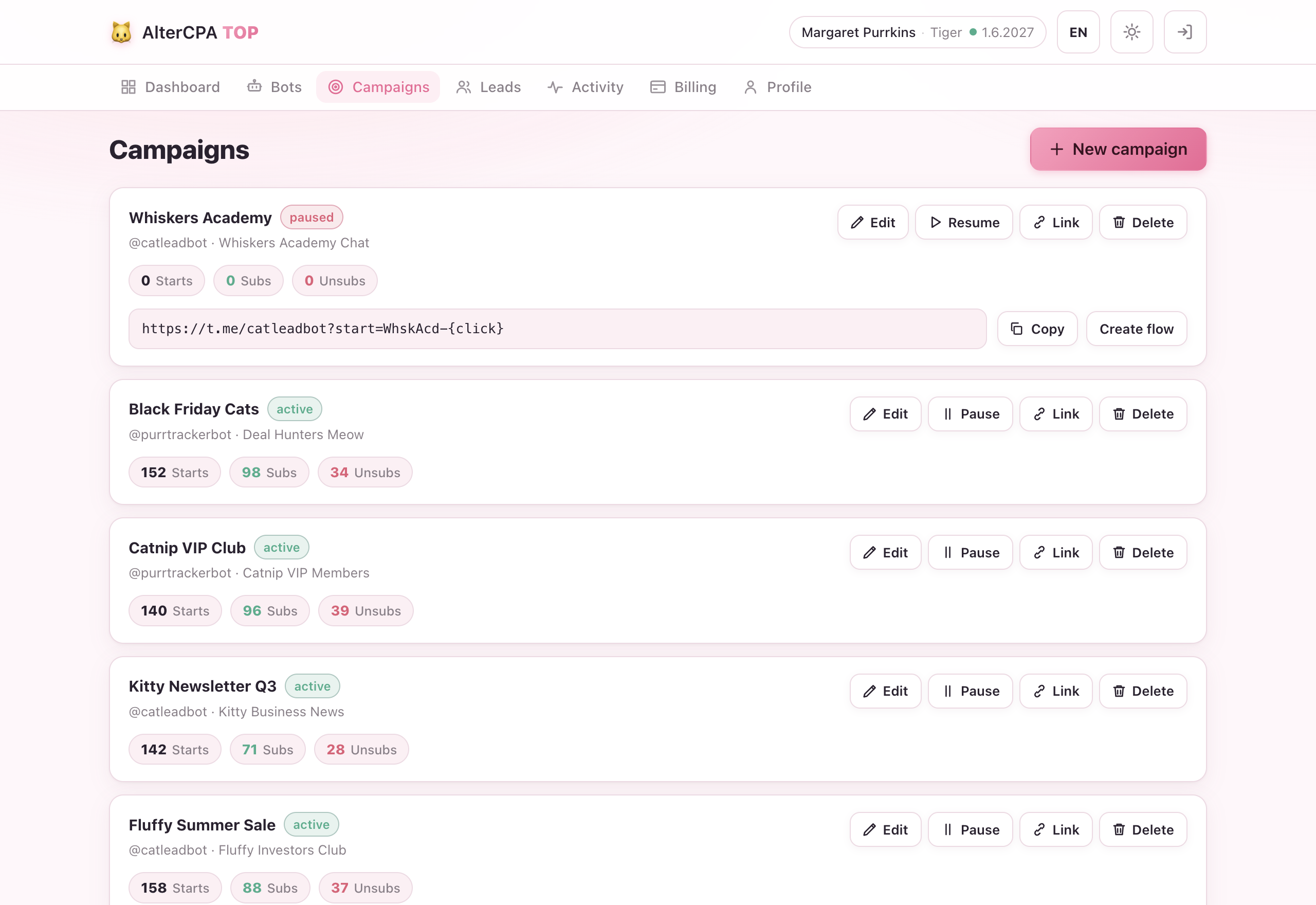
- Open Campaigns → Create campaign.
- Pick your bot, then pick the tracked chat.
- Write a welcome message — this is what subscribers see when they press Start. Add an optional image and a CPA button if you need one.
- If you set up global postbacks in Step 4, leave the campaign postback fields empty — they’ll fall back to your global templates. Otherwise, fill them in.
- Set the unsub window (how long a leave fires a postback — 7 days is a common choice).
- Click Save. Your deep link is revealed:
t.me/YourBot?start=CAMPAIGNCODE-{click}Replace {click} with your tracker’s click id macro (e.g. {subid} for
Keitaro, {click} for AlterCPA Lite). Put the resulting URL in your ad or
traffic source.
You’re live 🎉
Traffic coming through the deep link will now create leads and fire postbacks into your tracker. To monitor results:
- Leads — the real-time conversion table with statuses and click ids.
- Statistics — a grouped conversion report (by date, campaign, or bot) plus the activity journal; the headline funnel is on the Dashboard home.
If a postback isn’t arriving in your tracker, see FAQ — My postback isn’t firing.