Templates & events
Two optional extras make your operators faster and your tracker smarter:
- Templates — canned replies they can drop into a chat in one tap.
- Custom events — goal buttons that fire a conversion to your tracker from inside the chat.
Both are configured by you in the CRM tab; operators just use them.
Templates
A template is a ready-made reply — text, and optionally one image or file. Templates are grouped into sets, and a set is shared with teams. An operator on a team that has a set can insert any reply from it instantly, instead of retyping “Fresh herring landed this morning 🐟” for the hundredth time.
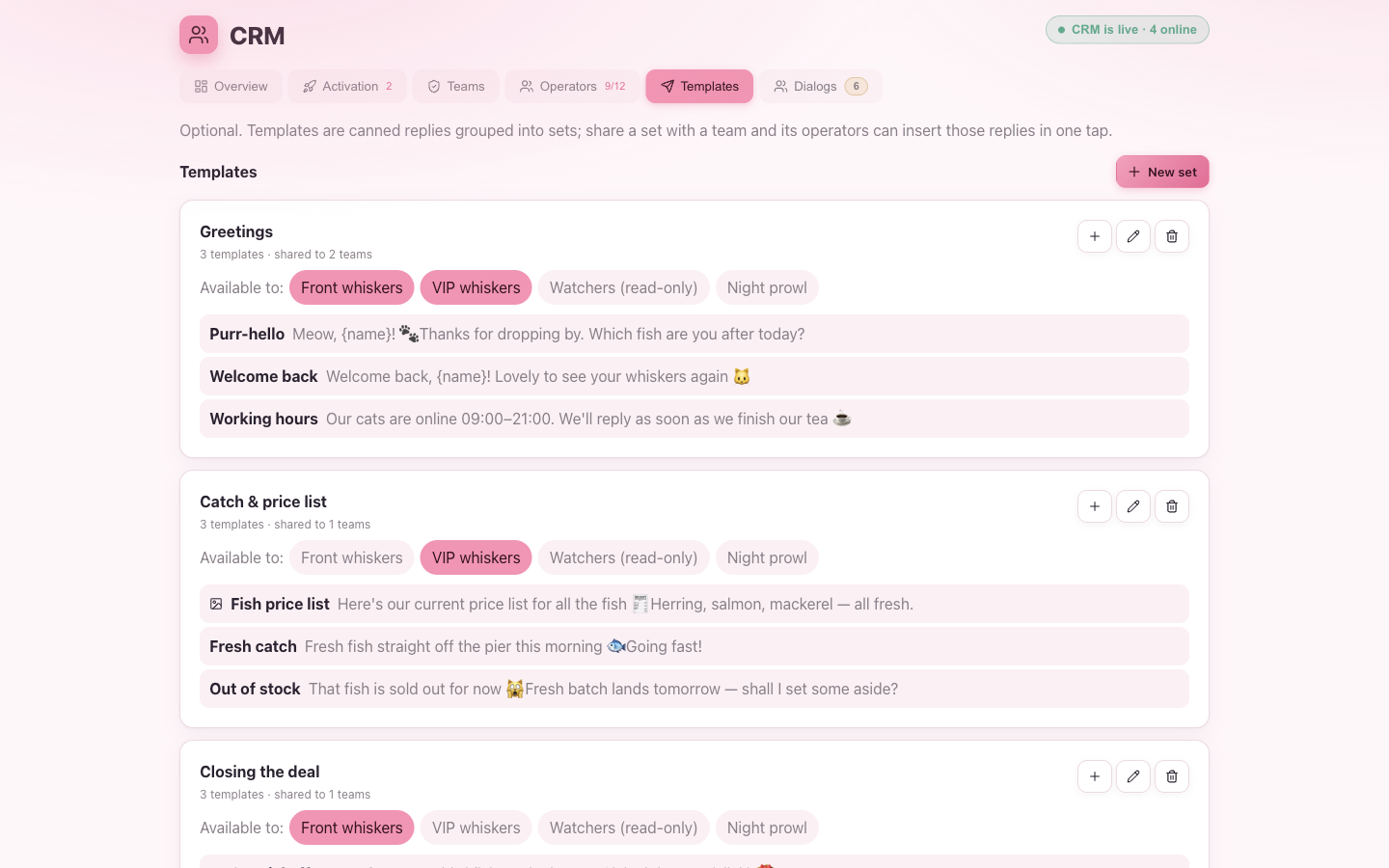
Sets and sharing
Press New set, give it a name (e.g. Greetings), and choose which teams may use it.
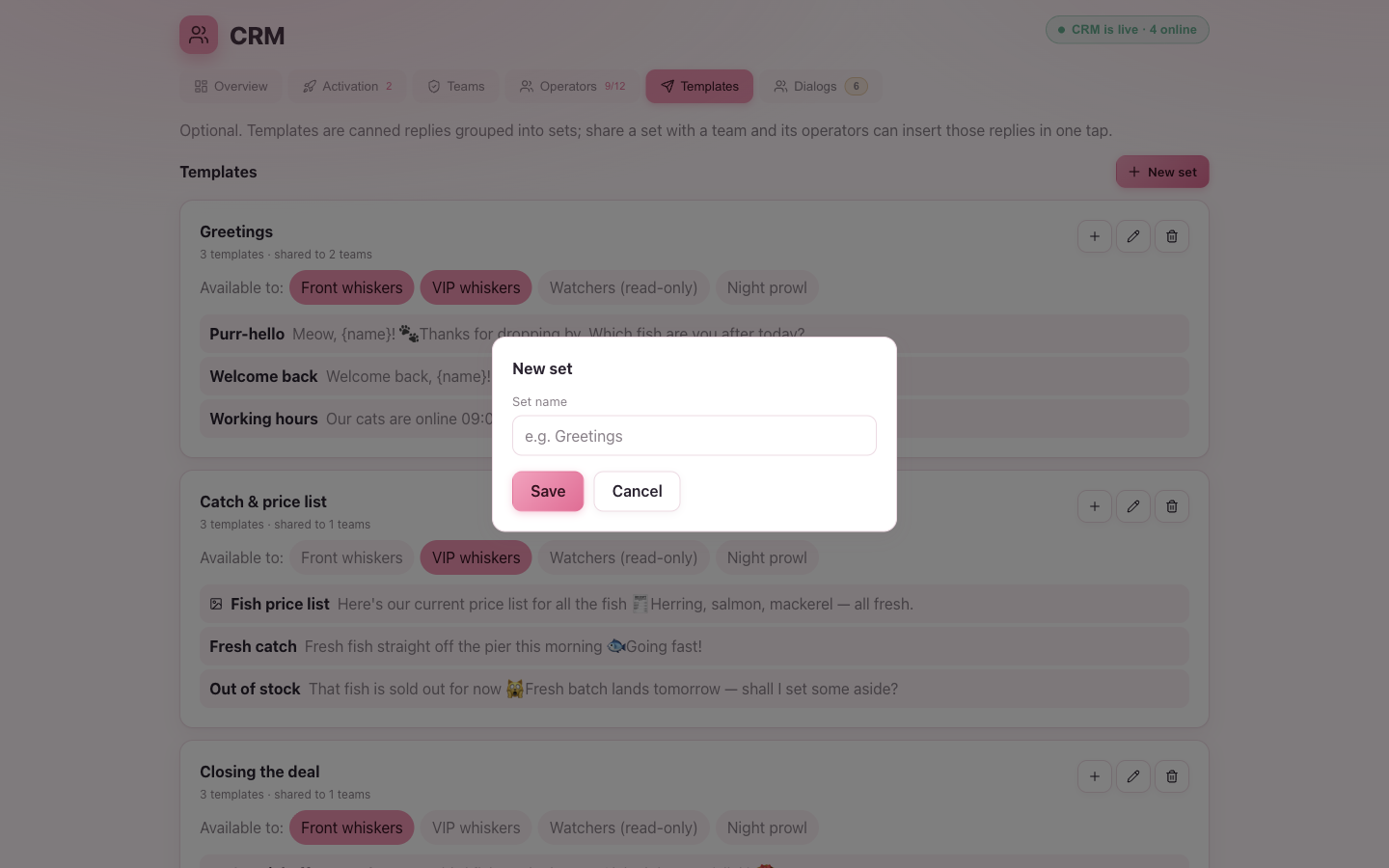
A set shared with no team is invisible to everyone — the card flags this so you don’t leave replies stranded. Templates with no set at all are listed as Ungrouped and, likewise, reach no one until you file them into a shared set.
Writing a reply
Inside a set, New template opens a small editor:
- Label — a short name for the picker (e.g. Fish price list).
- Text — the reply body. It supports the same macros as your campaign
postbacks, like
{click}and{subscriber}— see the macro reference. - Attachment (optional) — one image or file.
Macros need a tracked lead. A template macro fills from the dialog’s linked lead. If the subscriber wrote without a tracked
/start(an organic DM, no lead), lead macros render empty — so keep templates readable without them, or save macro-heavy replies for tracked conversations.
There are no buttons in templates — they’re for quick replies, not inline keyboards.
Custom events
A custom event is an operator-fired postback: a goal reached in the chat becomes a real conversion in your tracker. The classic example is a goal the bot can’t detect on its own — “booked a tasting”, “qualified for wholesale”, “promised to order”. When the operator fires it, we send a postback to your tracker by that lead’s click id, exactly like a lifecycle postback.
Events are defined per bot, alongside the bot’s CRM switch, on the Activation tab. Press Custom events on a bot to manage its list.
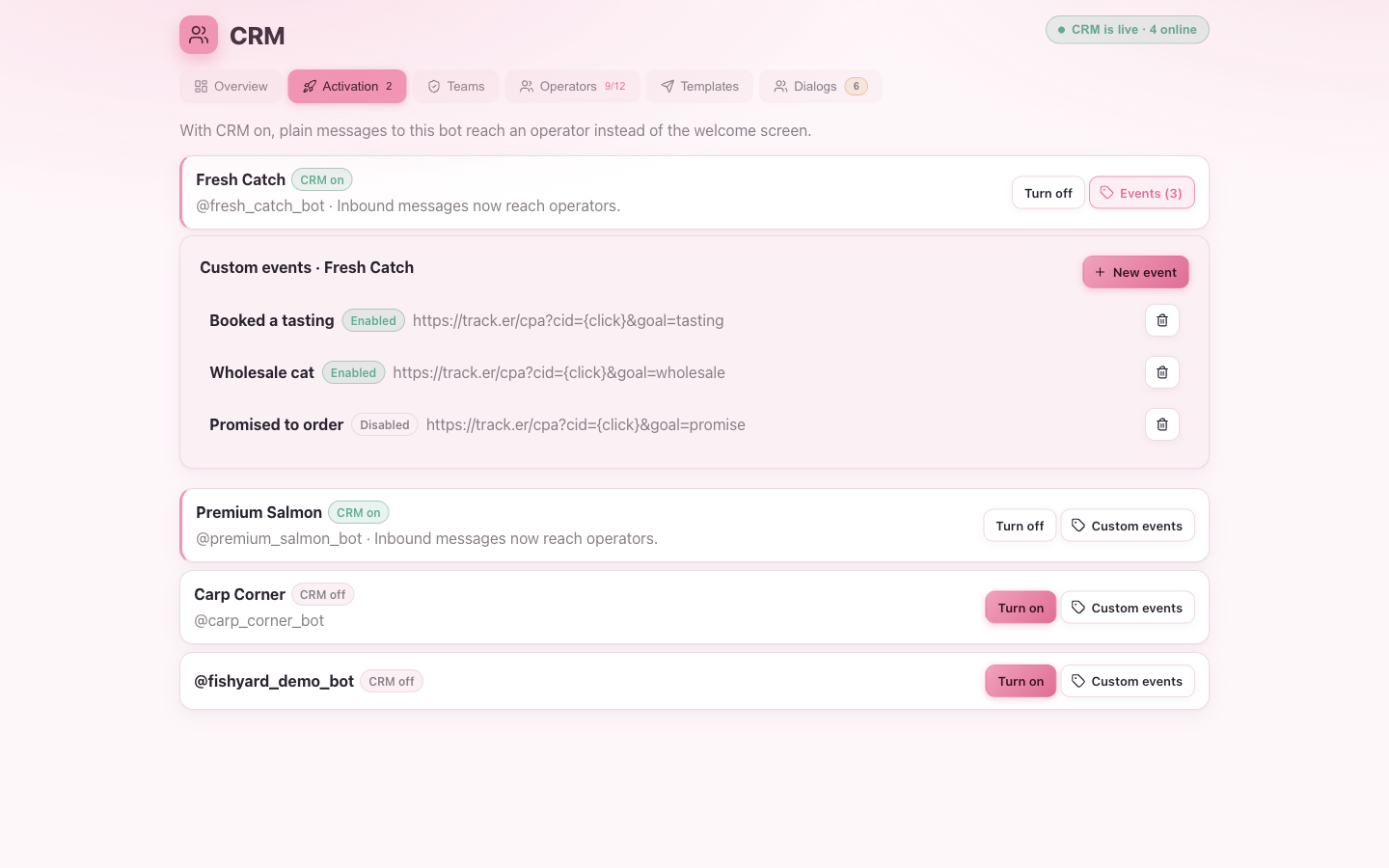
Defining an event
New event asks for:
- Name — what the operator sees (e.g. Booked a tasting).
- Description (optional) — a hint shown next to it.
- Postback URL — where to send the conversion, with the usual macros.
{click}is the important one — it’s replaced with the lead’s click id so your tracker attributes the conversion. See the macro reference. - Enabled — disable an event to hide it from operators without losing its history.
You can add as many events as you like and reorder them; the order is the order operators see in their picker.
Fired once per lead
Each event can fire once per lead — the database enforces it, so a double-tap or two operators can’t send the same conversion twice. Once an event is fired for a lead, it shows as done in the operator’s panel. (Re-firing the same event for the same lead isn’t supported in this version.)
Why events, not just chat? This is the one feature that keeps the CRM a companion to your tracker: the chat doesn’t hoard data, it feeds the tracker a conversion. Registrations and deposits still belong to your tracker integration; events cover the goals that only a human in the chat can confirm.
Where to go next
- Operator guide — how operators insert templates and fire events.
- Teams & operators — share sets with teams; grant the events permission.
- Tracker integration — how postbacks and macros work.