Team-lead & admin guide
Some operators do more than chat. This page covers the two elevated roles and the extra tools they unlock inside the operator app — reassigning dialogs, reading team stats, and running the team roster. The owner sets these roles in the dashboard (see Teams & operators); here’s what they do day to day.
The three roles
| Role | On top of chatting, can… |
|---|---|
| Operator | — (chats with subscribers) |
| Team-lead | reassign dialogs within the team and view team stats |
| Team-admin | also run the team roster — add / edit / disable / delete operators and re-issue their links (includes everything a team-lead can do) |
Two rules keep this safe and simple:
- Roles are team-scoped. Nothing a lead or admin does reaches outside their own team.
- Only the owner grants Team-admin. A team-admin manages plain operators and team-leads, but can never create or touch another admin — and can never hand out the admin role. That stays the owner’s job in the dashboard.
Whatever the app shows or hides, the server re-checks every action — a hidden button is never the real boundary.
Team-lead tools
Reassigning a dialog
When you hold (or are viewing) a conversation, a Reassign control lets you hand it to a specific teammate or release it to the pool so the next free operator can take it. Use it to balance load, pass a VIP to the right cat, or free a chat someone forgot to release.
Team statistics
A Stats button in the header opens a read-only stats sheet. Pick a date range to see:
- Volume (range) — dialogs opened, inbound and outbound messages.
- Queue right now — open, unclaimed, the oldest still waiting, and who’s online.
- Per operator — a sortable table of each operator’s sent messages, dialogs handled, confirms, lead edits and events fired.
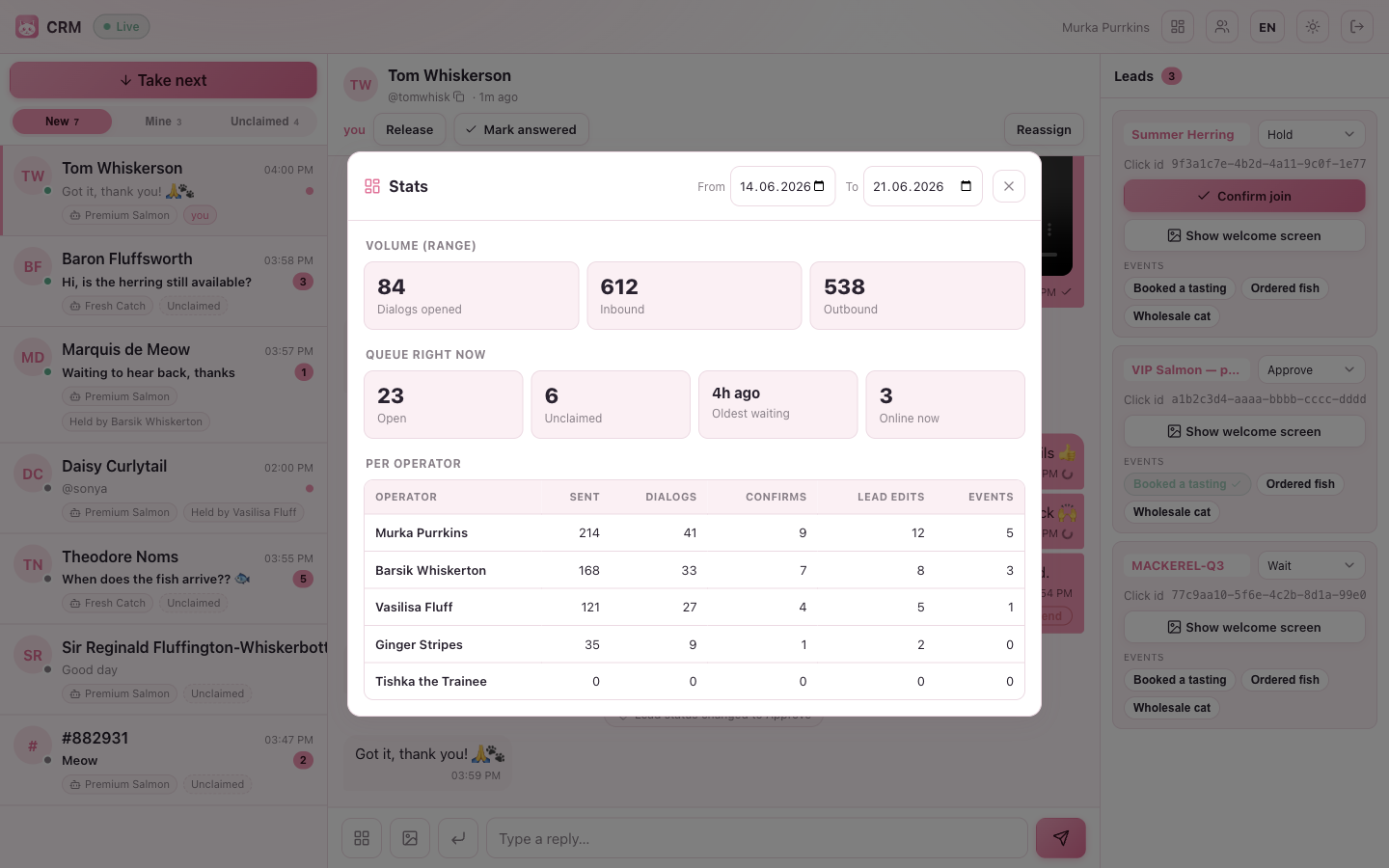
It’s the same picture the owner sees on the dashboard Overview — handy for a quick “who’s swamped, who’s idle, how long is the oldest cat-in-the-queue waiting”.
Team-admin tools
The team roster
A Team button opens the roster sheet, where you run your own team’s operators without going to the owner:
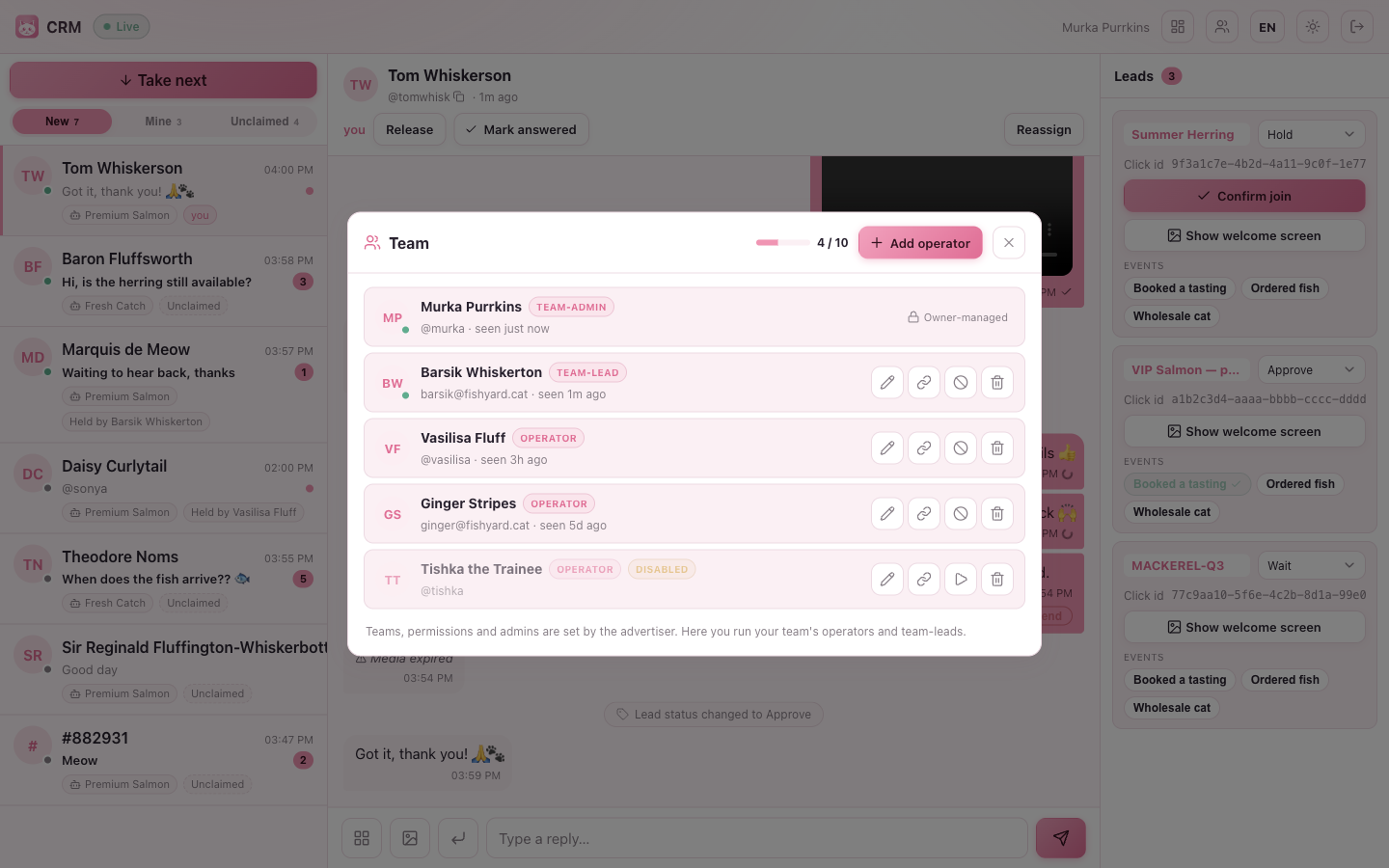
From here you can:
- Add an operator — create one and get a one-time sign-in link to send them (shown once — copy it immediately). New operators count against your plan’s seats; the Add operator button is disabled when seats are full.
- Edit — change a name or contact.
- Promote / demote — switch an operator between Operator and Team-lead (the role picker in the operator form). You can never set someone to Team-admin — that’s owner-only.
- Disable / Enable — disabling signs them out and returns their dialogs to the pool; it frees a seat.
- Delete — remove an operator; their dialogs return to the pool.
- Reset link — issue a fresh sign-in link; the old link and any open sessions stop working at once.
What you can’t touch
Other team-admins — and you yourself — appear as read-only “Owner-managed” rows. A team-admin can run and promote/demote operators and team-leads, but admins are managed only by the owner in the dashboard. This is enforced on the server, so it holds even if a row looks editable.
Same powers, two places. The owner can do all of this (and more — teams, permissions, templates, activation) from the dashboard’s CRM tab. The in-app roster and reassign tools simply let a trusted operator run the day-to-day without bothering the owner.
Where to go next
- Operator guide — the shared workspace every role uses.
- Teams & operators — how the owner sets roles, teams and permissions.