Message screens
Message screens turn your bot’s welcome from a single message into a guided, multi-step flow. Instead of one greeting, the subscriber gets a little in-bot menu: each screen is its own Telegram message — text, optional photo or video, and buttons — and the buttons can either open a link or move the subscriber to another screen. It’s the difference between handing someone a flyer and walking them through a short, branching tour.
Message screens are a paid feature. On a free plan the Screens option in the campaign editor is locked behind a short upsell. Your existing welcome message keeps working untouched — see Billing & tariffs to enable screens.
Two welcome modes
Every campaign has a welcome mode, switched with a toggle at the top of the Welcome section in the campaign editor:
| Mode | What the subscriber gets |
|---|---|
| Single message (default) | One greeting: text + optional media + an optional link button. This is the classic welcome, unchanged. |
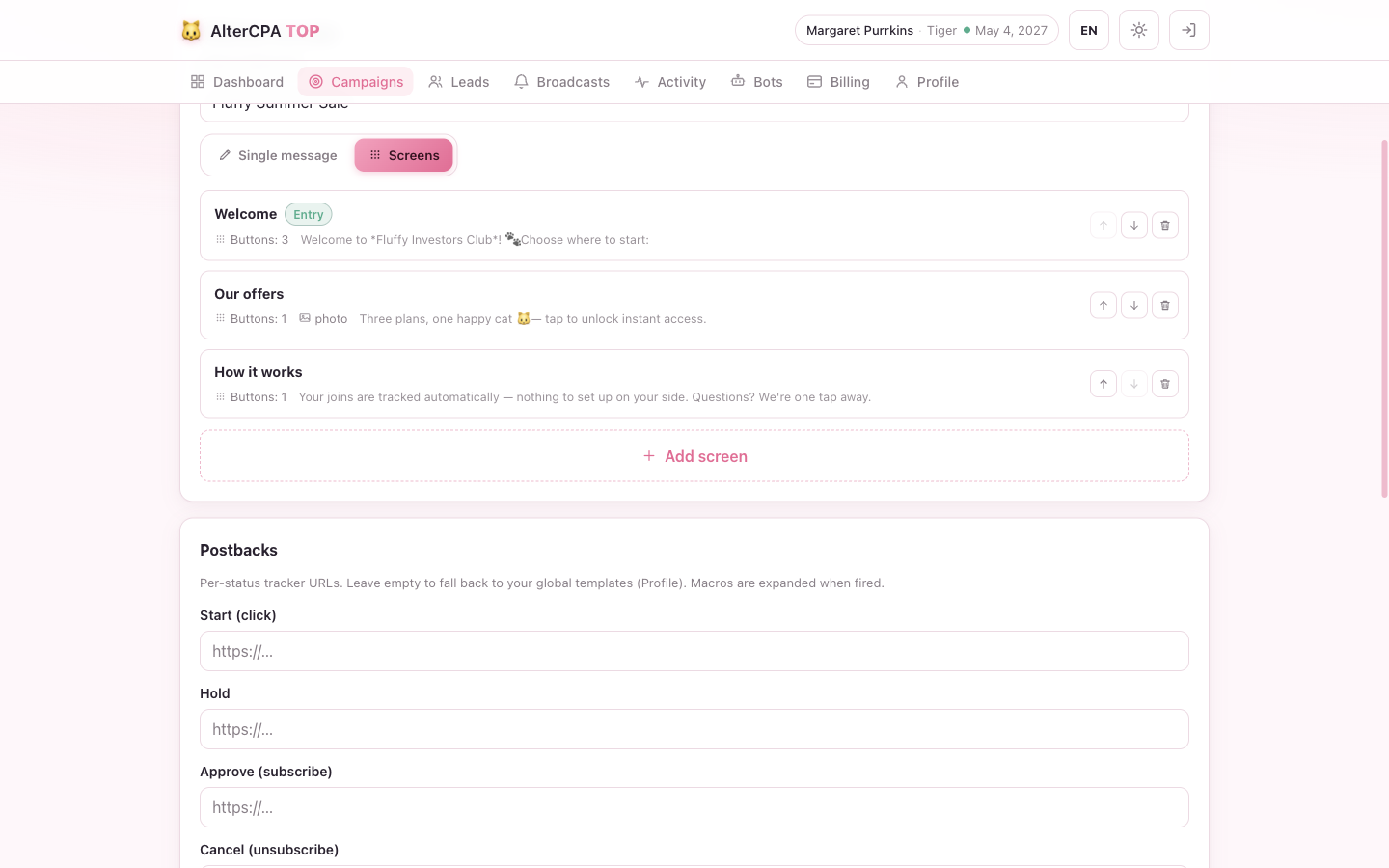
| Screens | A sequence of named screens. Each is its own message, and buttons navigate between them or open links. |
Switching modes is safe
- Single message → Screens. The first time you switch, we seed an entry screen from your current welcome (its text, media, and the CPA button), so the flow is immediately usable — nothing is lost and nothing starts blank.
- Screens → Single message. Always available, even on a lapsed plan. Your classic message is still there exactly as you left it; your screens are kept too, so you can switch back later without rebuilding them.
On a free plan you can still view a campaign that’s already in screens mode and switch it back to a single message — you just can’t switch a campaign into screens mode until you upgrade.
How a flow works for the subscriber
When someone presses Start, the bot sends the entry screen (the first one in your list). From there:
- A link button opens its URL. If the URL carries the
{click}macro, that tap registers in your tracker exactly like a click on the classic CPA button — see How tracking works. - A navigate button swaps the current message for another screen, in place. The subscriber can move forward and back through your flow as much as they like.
Navigation is purely cosmetic movement between screens: it fires no postback and creates no lead event. Only the real join/leave events (Start, Hold, Approve, Cancel, Trash) move a lead and fire postbacks, exactly as in single-message mode.
Building your screens
With Screens selected, the Welcome section becomes a list of screen cards.
Each card shows the screen’s name, an Entry badge on the first screen, a button count, a photo / video indicator, and a one-line text snippet. A screen with no buttons is flagged “No buttons” with a coloured edge — the subscriber would land there with nowhere to tap, so it’s worth adding one. Use ↑ / ↓ to reorder (the entry screen stays first), the trash icon to delete, and the dashed Add screen card to append a new one.
The number of screens per campaign, and buttons per screen, is capped — the editor stops you (and tells you) when you hit the limit.
The screen editor
Click any card to open the screen editor:
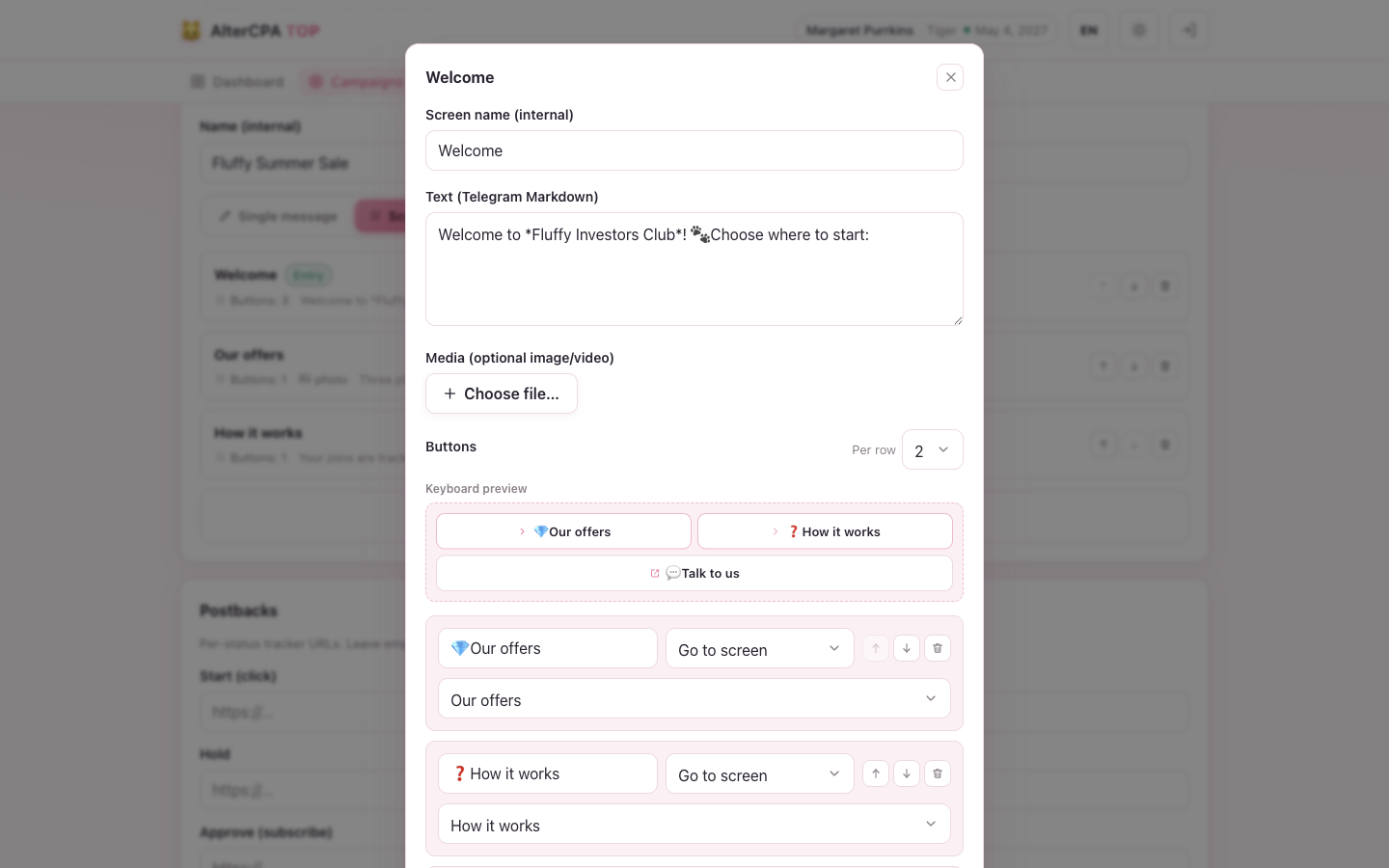
| Field | What it does |
|---|---|
| Screen name | An internal label for you (e.g. “Welcome”, “Offer”, “FAQ”). Subscribers never see it. |
| Text | The screen body, in Telegram Markdown (*bold*, _italic_, [link](url), `code`). Becomes the caption when media is attached. Macros like {click} work here too — handy for a tracking link inside the text. |
| Media | An optional photo or video, uploaded from your device. |
| Per row | How many buttons sit on one keyboard row (1–8). The flat button list is wrapped into rows of this many. |
| Buttons | The buttons for this screen (see below). |
The keyboard preview above the button list shows exactly how the inline keyboard will look in Telegram — your buttons wrapped into rows of the chosen width. It updates as you edit, so what you see is what the subscriber gets.
Button types
Each button has a label and a type:
| Type | What it does |
|---|---|
| Link | Opens a URL. Paste an external link (the {click} macro helper inserts the click id for your tracker), or a Telegram @username / t.me/… link. |
| Go to screen | Navigates to another screen in this campaign — pick the target from the dropdown. This is what makes the flow multi-step. |
Reorder buttons with ↑ / ↓, remove with the trash icon, and append with Add button.
Save & preview
- Save screen stores the screen’s text, media, layout, and buttons together, then closes the editor. Adding, reordering, or deleting whole screens in the list happens immediately; edits inside the editor are draft until you save (closing with unsaved changes asks first).
- Send to myself delivers the screen to your own Telegram through the service bot so you can check the wording and buttons. The preview shows text and buttons only — media isn’t included, and navigate buttons are inert (they only move between screens inside your own bot).
A few rules
- The entry screen is always first; reordering keeps it at the top.
- You can’t delete a campaign’s only screen.
- You can’t delete a screen that another button navigates to — repoint that button first.
When your plan lapses
Screens are configured only in the web dashboard, not in the
Telegram bot interface — the bot shows a Screens: N
line and an Edit screens link that opens the dashboard for you.
If your subscription lapses, your bots go to sleep and stop serving any welcome — single message or screens alike. Your screens are never deleted: they’re preserved as-is and start working again the moment you renew. See Billing & tariffs for how grace and sleep work.