Dashboard overview
When you open my.altercpa.top you land on the Dashboard — a single-page app that updates in real time and covers everything from connecting bots to checking your conversion funnel.
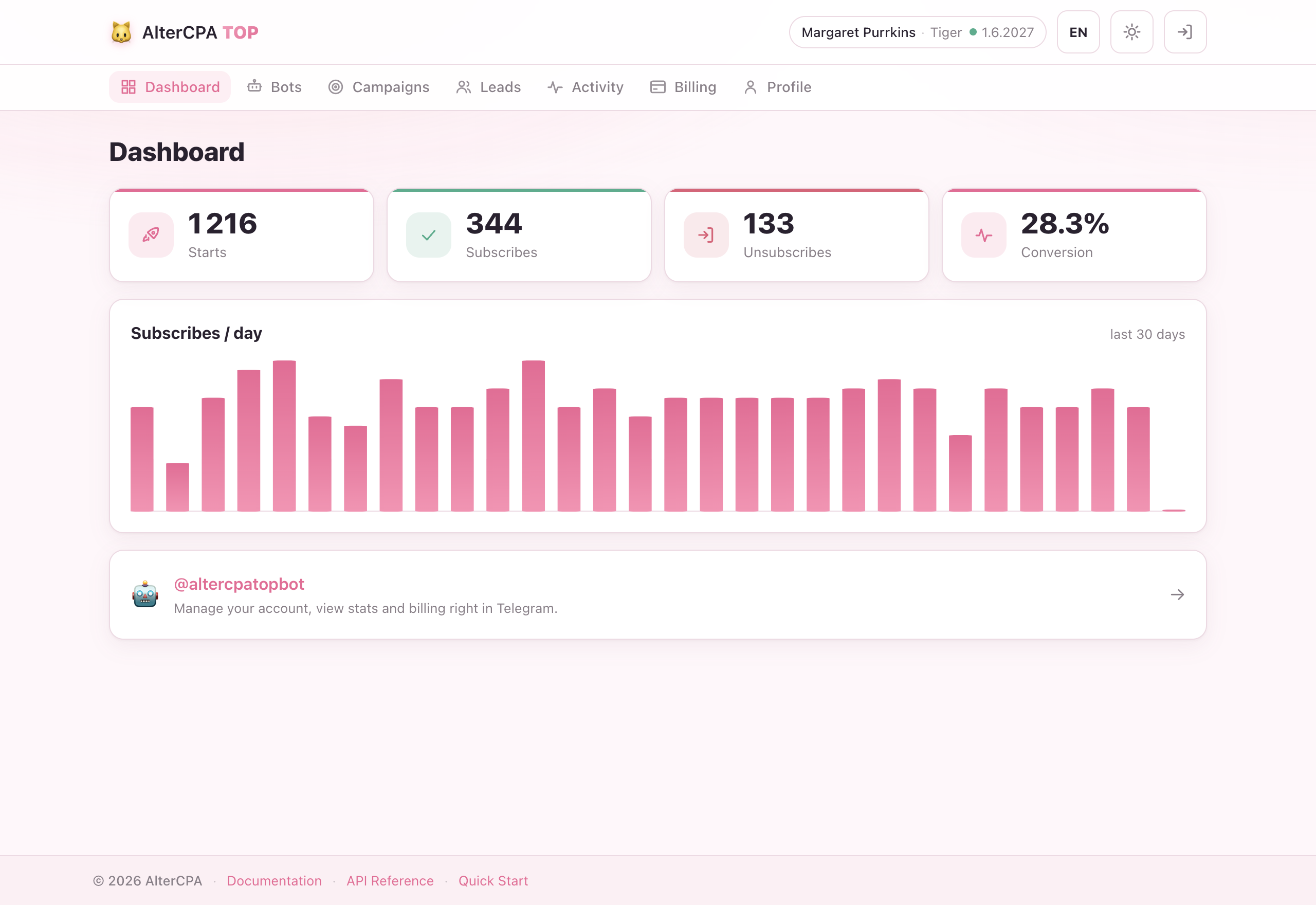
The top bar
| Element | What it does |
|---|---|
| RU / EN | Switch the interface language. The choice is saved to your profile. |
| ☀ / ☾ | Toggle light and dark theme. |
| Account | Your Telegram display name and a logout button. |
Main navigation
The sidebar (desktop) or hamburger menu (mobile) lists every section:
| Section | Purpose |
|---|---|
| Dashboard | Headline stats, audience growth, and the conversion funnel — your home base. |
| Bots | Connect and manage your Telegram bots. |
| Campaigns | Create and edit campaigns; grab your deep link. |
| Leads | Browse and export your conversion table. |
| Broadcasts | Message your leads — automatic follow-ups and one-off blasts. |
| Statistics | A grouped conversion report and the activity journal. |
| Billing | Your current plan, payment history, and upgrade options. |
| Profile | API key, language, and the tracker-connect wizard. |
The Transfer page is not in the main menu. You reach it from a small link at the bottom of the Bots and Campaigns pages.
Headline stats (home screen)
At the top is a period selector (7 / 30 / 90 days, default 30) that scopes the whole screen. The four KPI tiles cover all your active campaigns combined for the selected period, each with a trend indicator versus the previous equal-length period:
| KPI | Definition |
|---|---|
| Starts | Subscribers who pressed Start in your bot. Each counts once per campaign — re-starts refresh the same lead. |
| Confirms | Leads that reached the approve status (actually joined). |
| Unsubs | Leads that left after joining (status cancel or trash). |
| CR | Conversion rate — Confirms ÷ Starts × 100 %. |
Below the tiles: an audience-growth card (joins vs departures), a conversion funnel (Starts → Joined → Subscribed now), and a top-campaigns leaderboard. A brand-new account with no campaigns sees a first-run checklist instead.
Two ways in
Your AlterCPA TOP account is the same whether you’re on the web or in @altercpatopbot. All data is shared. For a tour of the bot interface see Running everything from Telegram.