Operator guide
This page is for operators — the cats behind the counter. It walks through your
workspace at crm.altercpa.top: signing in, working the inbox, chatting, and handling
leads. (If you run a team, also read the
Team-lead & admin guide.)
Signing in
There’s no password and no login form. You get in with a personal link from your manager — open it once and you’re in. The page is deliberately a charming little “secret entrance”; without the link, there’s no way through.
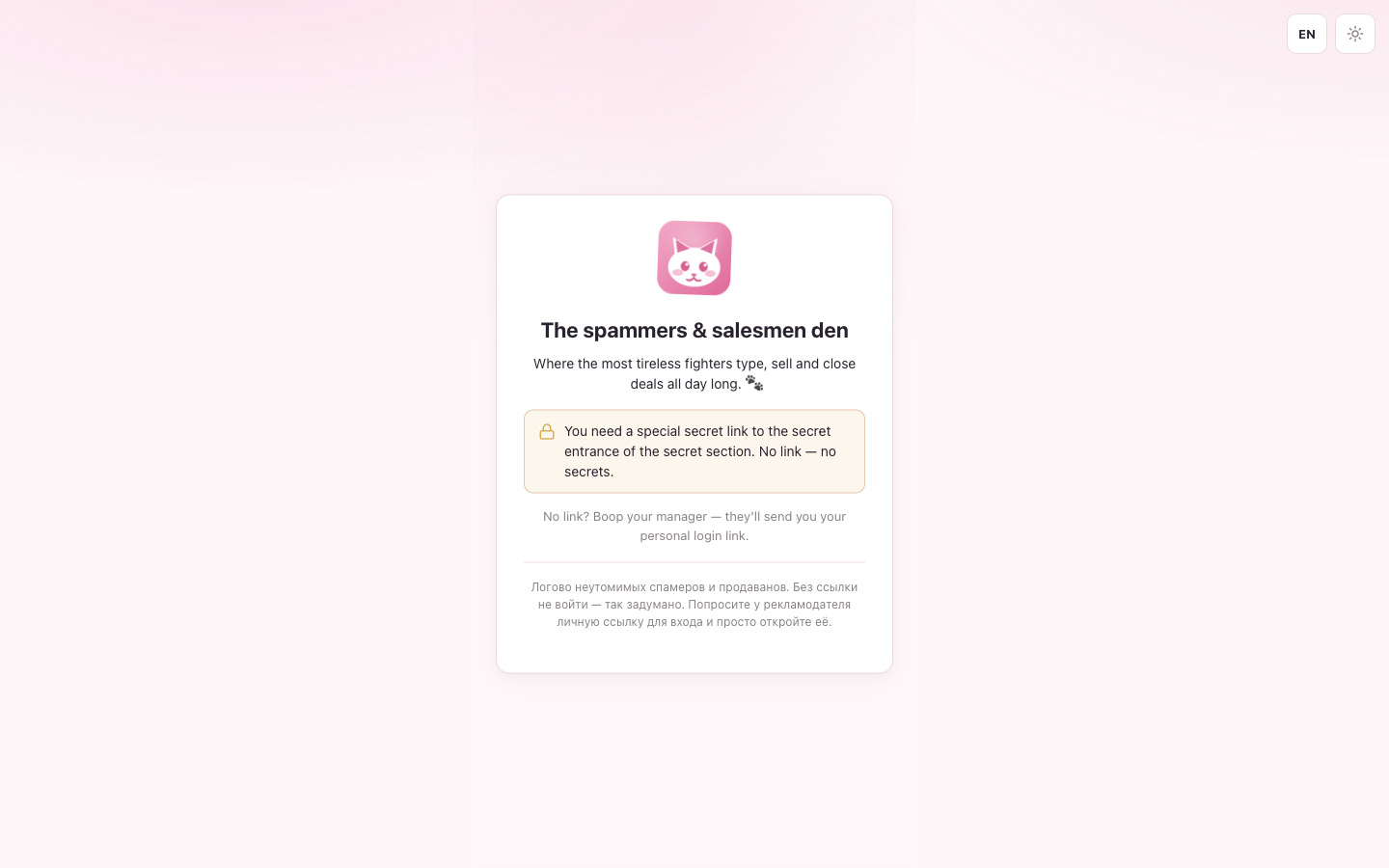
- No link? Ask your manager (the advertiser) — they mint your link and can re-issue it any time.
- “Invalid or expired link” — the link was reset; ask for a fresh one.
- “Access is currently off” — your account is disabled; ping your manager.
The top-right toggles switch language (RU / EN) and theme (light / dark) — set them however you like; the choice sticks.
The workspace
Once in, you get a three-region workspace: the inbox on the left, the chat in the middle, and the lead panel on the right.
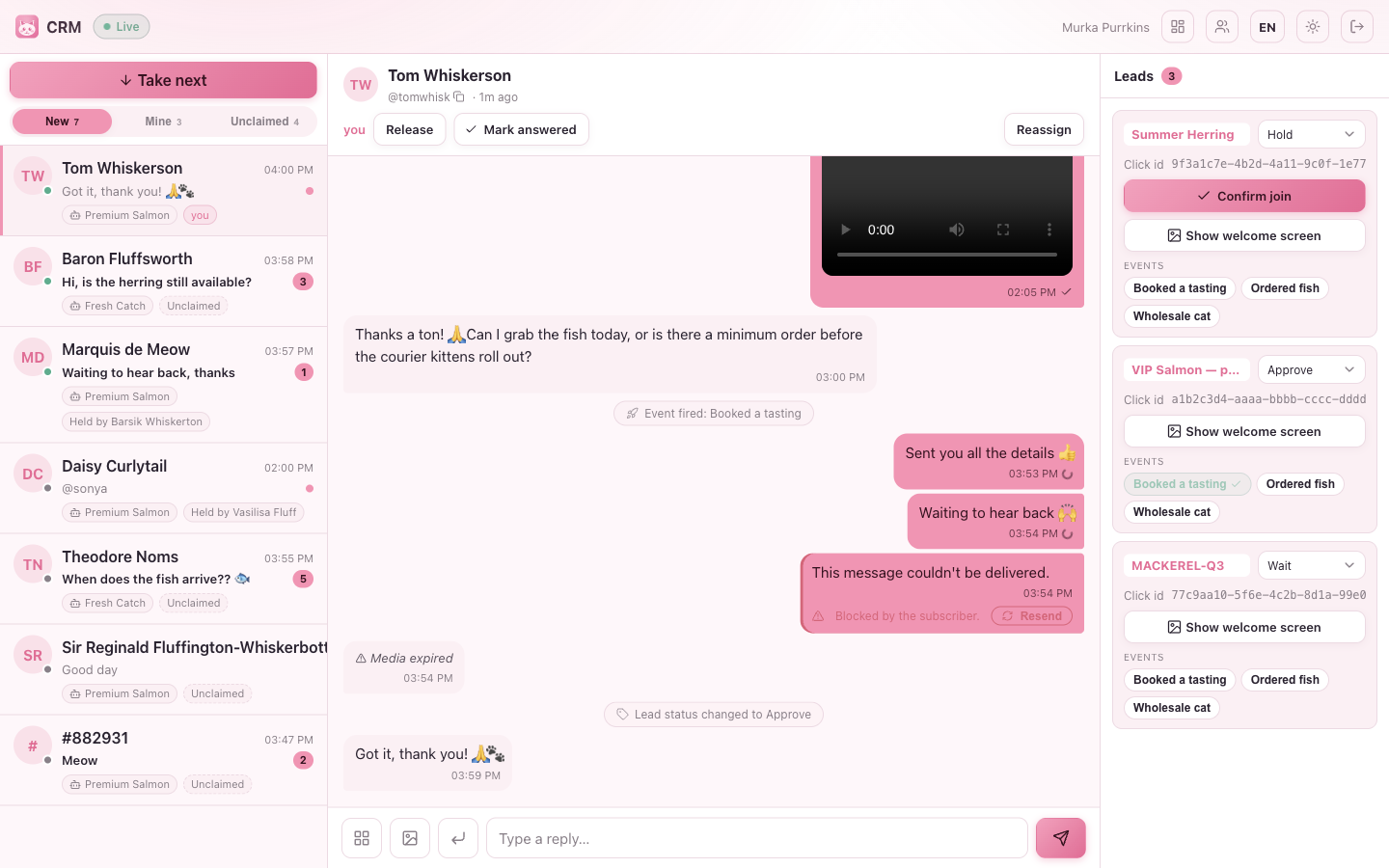
The header shows a live / offline pill (green when connected — new messages arrive on their own), your name, and the language / theme / logout controls.
The inbox
The inbox lists conversations, newest activity first. Across the top are filters with live counts:
| Filter | Shows |
|---|---|
| All | every conversation you can see |
| New | conversations awaiting a reply (the queue to clear) |
| Mine | conversations you currently hold |
| Unclaimed | conversations nobody has taken yet |
Each row shows the subscriber’s name, the time, a preview of the last message, an unread badge, and small chips — which bot it’s on, who’s holding it, and a sticky marker if the dialog is locked to one operator. A dot marks a conversation that still needs a reply.
Take next grabs the oldest waiting conversation and opens it — the fastest way to work a queue without picking rows by hand. When nothing’s waiting, it tells you you’re all caught up. 🐾
The chat
Open a conversation to read the full thread — text, photos, files, voice, video and stickers, grouped by sender with delivery ticks and date separators. System notes (a teammate took or reassigned the dialog, a join was confirmed, an event fired) appear inline so you always know what happened.
Claiming. A conversation in the pool shows a Take button. Claim it and it’s yours to answer; a teammate who already holds one shows as “Held by X, active a moment ago” and is read-only for you — no one can snatch a chat out from under the cat working it. Replying takes the dialog for you automatically, so you can just start typing.
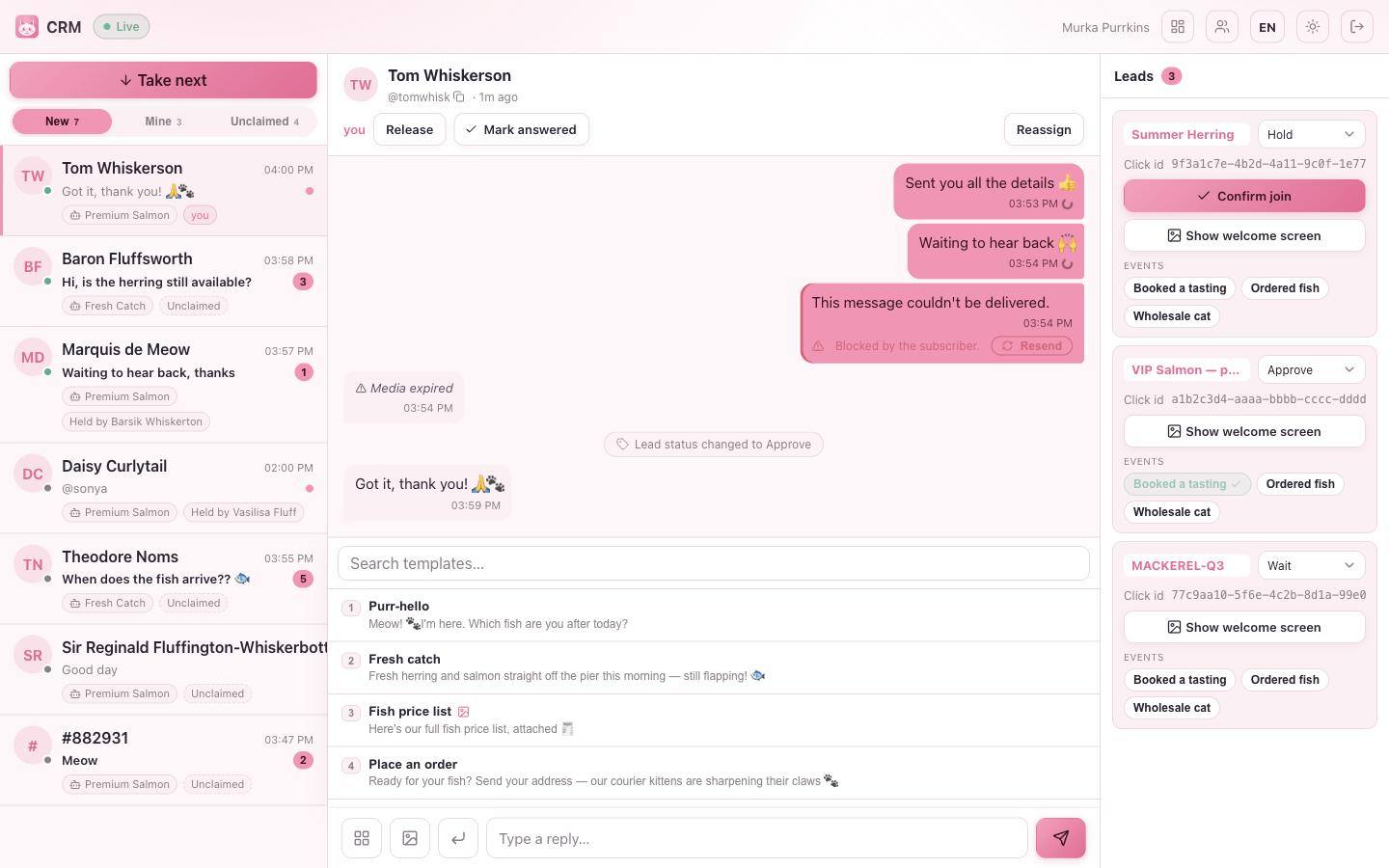
The composer. Type your reply and send. A small toggle switches whether Enter sends (Shift+Enter for a new line) or Ctrl/Cmd+Enter sends — your choice. You can attach a photo or file, and:
- Templates — open the template picker, search, and insert a canned reply in one tap (numbered for hotkeys). Only the sets your team was given show up. Remember: lead macros render empty if the subscriber has no tracked lead.
- Resend — if a message fails (the subscriber blocked the bot, say), it’s flagged and you can resend or move on.
- Mark answered — clear a conversation off the “New” queue without sending anything.
The lead panel
The right-hand panel shows the lead(s) behind this conversation — because one subscriber may have come through several of your campaigns, you may see more than one card. Each card has:
- the campaign name and the lead’s status;
- the click id (one tap to copy);
- Confirm join — see below;
- event chips — fire a custom event for that lead; a fired event shows as done.
If the subscriber wrote without a tracked /start, you’ll see “No tracked lead
here” — that’s an organic DM, and there’s nothing to attribute.
What you can do here depends on your team’s permissions. If lead editing is off, the status is read-only; if events are off, you won’t see event chips; on a read-only team, the whole panel is for viewing.
Confirming a join
Confirm join admits a subscriber into your group in one click — but only when they asked to join (a pending join request) and the group uses join approval. If there’s nothing pending, you’ll see “No pending join request” rather than a fake success. For groups anyone can join freely, there’s nothing to confirm.
When it works, Telegram lets the subscriber in and the lead moves to Approve on its own — you don’t change the status by hand.
On phone and tablet
The workspace is fully responsive. On a phone you get a clean master/detail flow — the inbox, then tap a conversation to open it, with the lead panel as a bottom sheet:
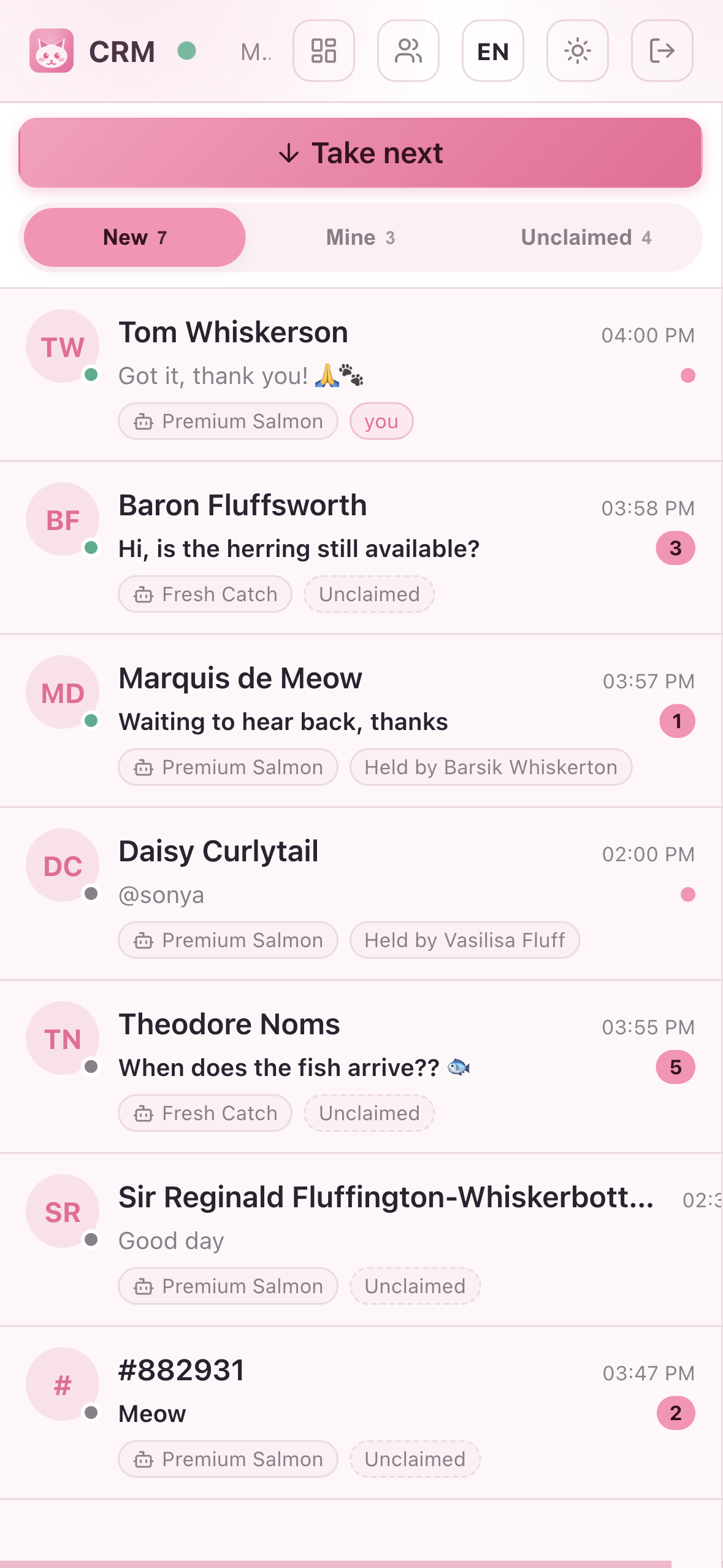
On a tablet the lead panel becomes a slide-in drawer you toggle from the chat header. Everything you can do on desktop, you can do on the go.
Where to go next
- Templates & events — what the canned replies and event chips are.
- Team-lead & admin guide — if you reassign chats or run the roster.