Teams & operators
This is where you build your staff: teams decide what operators may do and which bots they answer, and operators are the individual cats who sign in and chat. You also oversee their live dialogs here. Everything on this page lives in the CRM tab of your dashboard — operators never see it.
Teams
A team is two things bundled together: a permission set and a bot allowlist. Every operator belongs to exactly one team and inherits its rules. Most owners only ever need one team; create more when different groups need different powers (a VIP desk, a read-only watcher, a night shift…).
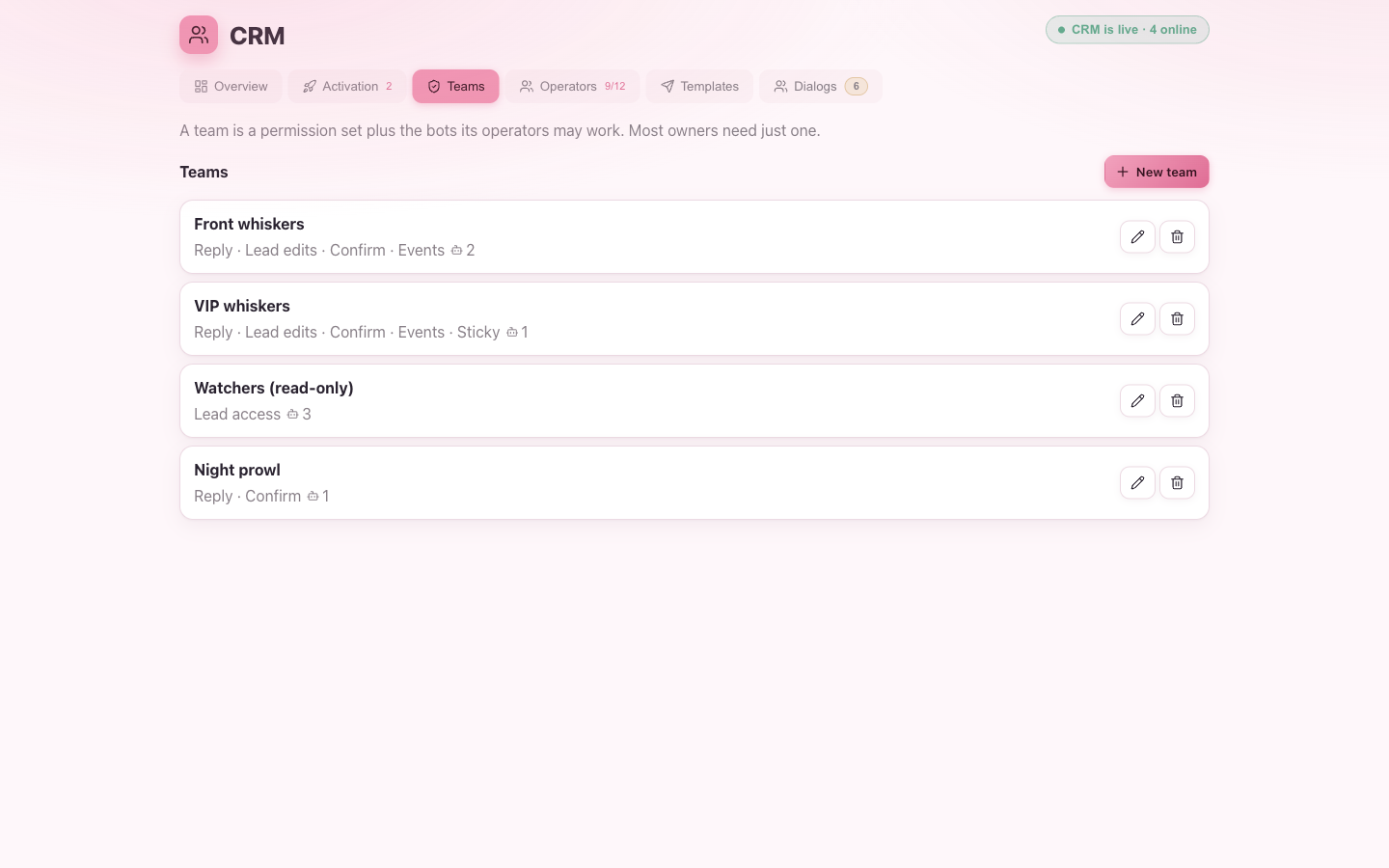
Create or edit a team
Press New team. The editor leads with a starting point so you don’t have to reason about every switch:
| Preset | Gives operators… |
|---|---|
| Full access | reply, see & edit leads, confirm joins, fire events |
| Read-only | see dialogs and leads, but not reply or change anything |
| Custom | the switches as you set them |
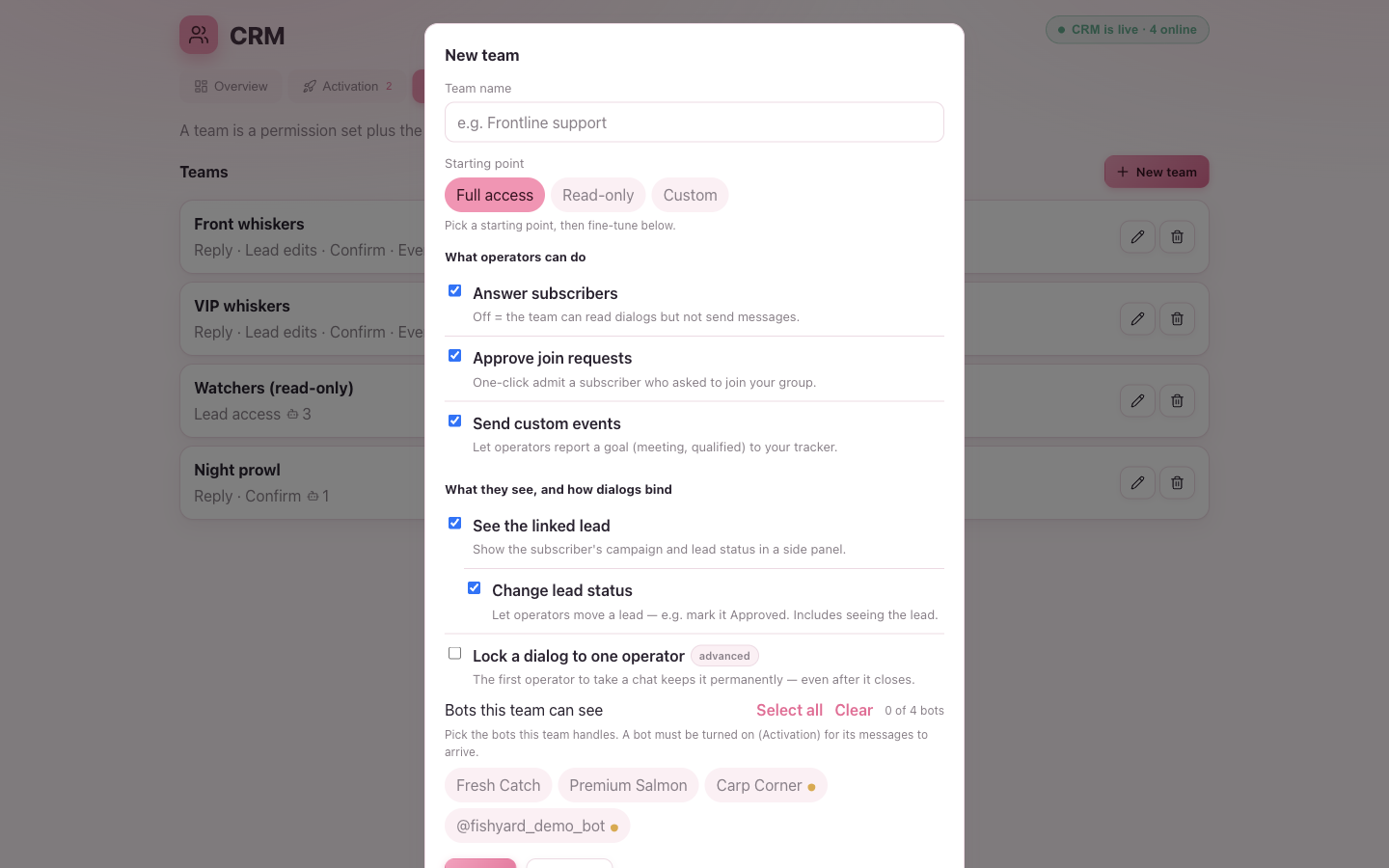
Below the preset, the permissions are grouped into two clusters, each switch with a one-line explanation:
What operators can do
| Switch | What it allows |
|---|---|
| Answer subscribers | Send messages. Off = the team can read dialogs but not reply. |
| Approve join requests | One-click admit a subscriber who asked to join your group. |
| Send custom events | Report a goal (e.g. tasting booked, qualified) to your tracker. |
What they see, and how dialogs bind
| Switch | What it allows |
|---|---|
| See the linked lead | Show the subscriber’s campaign and lead status in a side panel. |
| Change lead status | Let operators move a lead — e.g. mark it Approved (includes See the linked lead). |
| Lock a dialog to one operator (advanced) | The first operator to take a chat keeps it permanently — even after it closes. |
Sticky dialogs. Lock a dialog to one operator is the “this customer is mine” setting: once an operator takes a chat, it stays theirs across release, close and going offline. Leave it off for a shared front desk where anyone can pick up the next waiting chat.
The bot allowlist
At the bottom, tick which bots this team handles. A bot the team can’t see produces no
dialogs for them. Select all / Clear and an n of m counter help. If you pick
a bot that isn’t turned on yet, an inline note reminds you to enable it under
Activation — otherwise no messages arrive.
Operators
An operator is one person who signs in and chats. Each operator belongs to one team, takes one seat from your plan, and signs in through a personal link — there are no passwords.
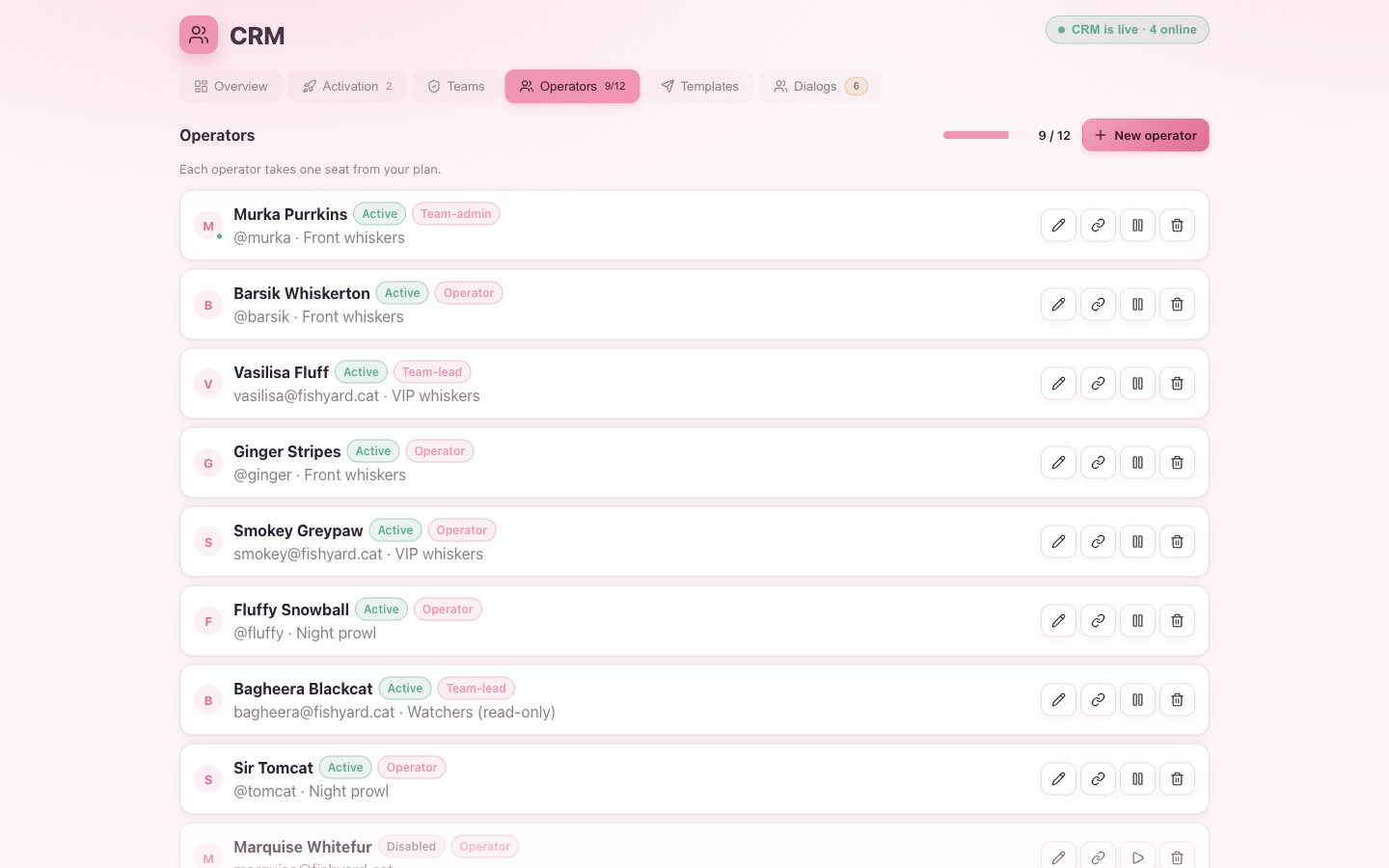
The seat gauge at the top shows used / cap. Disabling or deleting an operator
frees their seat; when the gauge is full, New operator is disabled until you free
one.
Add an operator
Press New operator and fill in:
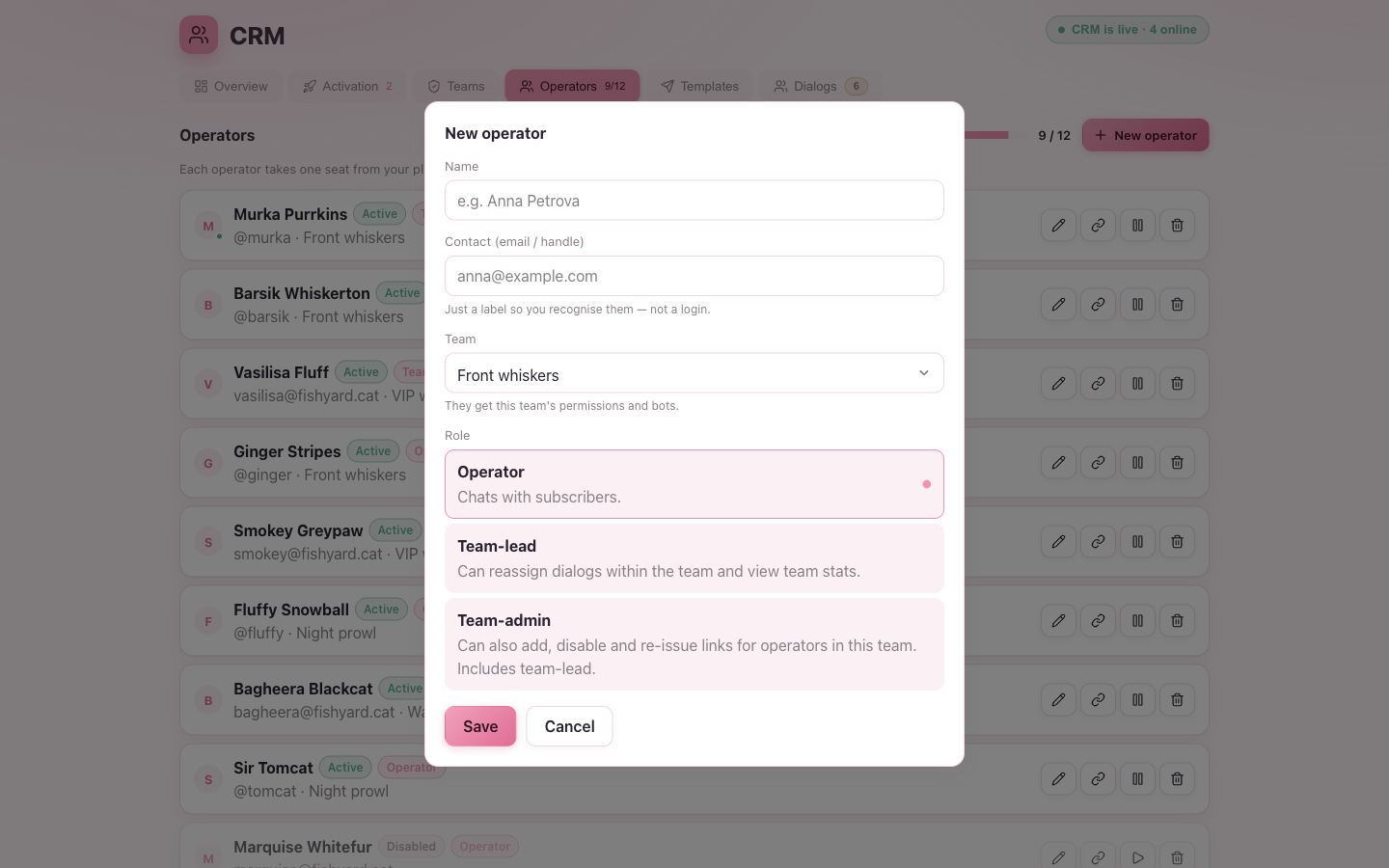
- Name — how they appear in the inbox and stats.
- Contact — an
@handleor email for your reference only. It is not used to sign in. - Team — they inherit this team’s permissions and bots.
- Role — a single selector with three choices:
| Role | Can… |
|---|---|
| Operator | Chat with subscribers. |
| Team-lead | Also reassign dialogs within the team and view team stats. |
| Team-admin | Also add, disable and re-issue links for operators in this team (includes Team-lead). |
Only you grant Team-admin. A team-admin can run their own team’s operators and team-leads, but can never create another admin — that stays your call as the owner. See the Team-lead & admin guide.
The one-time sign-in link
When you save a new operator, we show their sign-in link once — copy it then and
send it to them (it works once, then they’re in). The operator opens it at
crm.altercpa.top and starts working.
If a link leaks or someone leaves, use Reset link on their row: the old link and any open sessions stop working immediately, and you get a fresh link to hand out. Disable signs an operator out, returns their dialogs to the pool, and frees their seat (re-enable them later if a seat is free); Delete removes them and likewise frees the seat.
Dialog oversight
The Dialogs tab is your read-only window onto every live conversation. You can see who holds what, reassign a dialog to another operator, or release it back to the pool — but you never chat here; that’s the operator app.
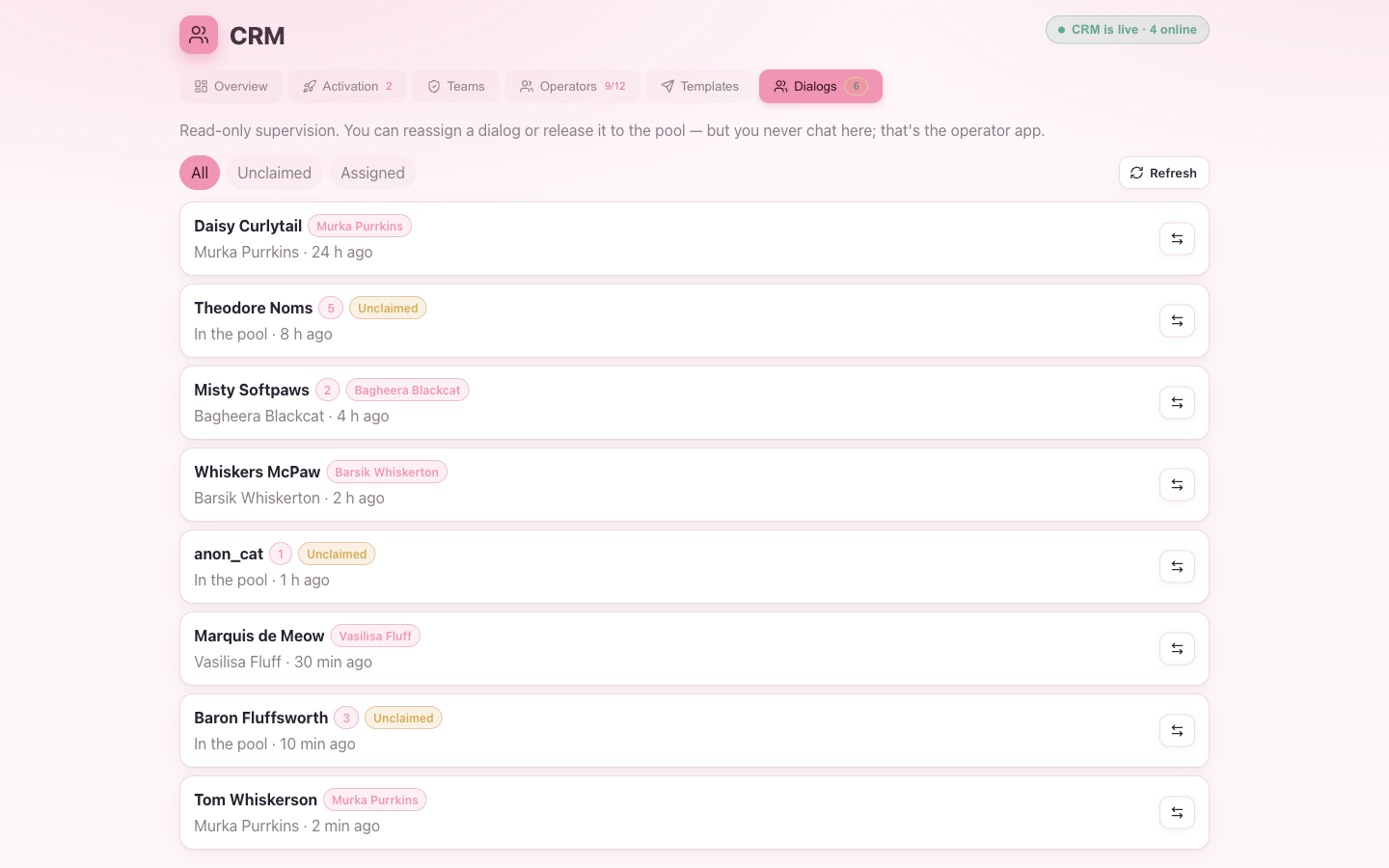
Filter by All / Unclaimed / Assigned and sort oldest-first to spot a chat that’s been waiting too long. Press the reassign action on a row to move a dialog to a specific operator, or release it so the next free cat can take it.
Where to go next
- Templates & events — give your team canned replies and goal events.
- Operator guide — what your operators see and do all day.
- Team-lead & admin guide — delegate roster and reassignment.