CRM — operator chat
The CRM turns your bot into a live support desk. Real people — your operators — chat, in real time, with the subscribers who message your bot. Anyone who writes to your bot has opened a chat with it, so you can always reply; the CRM is simply a comfortable inbox sitting on top of that connection. (Subscribers who arrived through a tracked campaign link also carry a lead; those who simply DM the bot don’t.)
Think of it as a fish stall run by cats: buyers wander up and ask questions, and your support cats answer, send the price list, take the order, and ring it up — all without ever leaving Telegram.
The CRM is a paid feature. It needs a plan with CRM enabled (and a number of operator seats). On a plan without it, the CRM tab shows a short teaser and the controls are locked — see Billing & tariffs.
Two sides, two apps
The CRM has a clean split between the person who sets it up and the people who chat:
| You are the… | You work in… | You do… |
|---|---|---|
| Owner (advertiser) | the CRM tab in your dashboard (my.altercpa.top) | turn it on, build teams, add operators, write templates — but never chat here |
| Operator | the operator app at crm.altercpa.top | answer subscribers all day; you never see the owner’s settings |
The two never overlap. The owner configures everything and watches over it; operators only get a chat workspace.
Want to answer subscribers yourself? The owner can’t chat from the dashboard — add yourself as an operator (it takes one seat) and open the operator app with your own sign-in link, like anyone else.
How a message reaches an operator
It all comes down to whether CRM is on for that specific bot:
| CRM for the bot | What happens to the inbound message |
|---|---|
| Off | The welcome screen answers — just like before. |
| On | A dialog appears in the operator inbox; an operator claims it and replies. |
Turning CRM on for a bot is the master switch. Until you flip it, plain messages to that bot are handled by your welcome / message screens as before. Flip it on, and those messages become dialogs waiting for an operator.
Setup in four steps
The CRM tab opens on an Overview page that doubles as a setup checklist. It walks you through exactly four steps, in order:
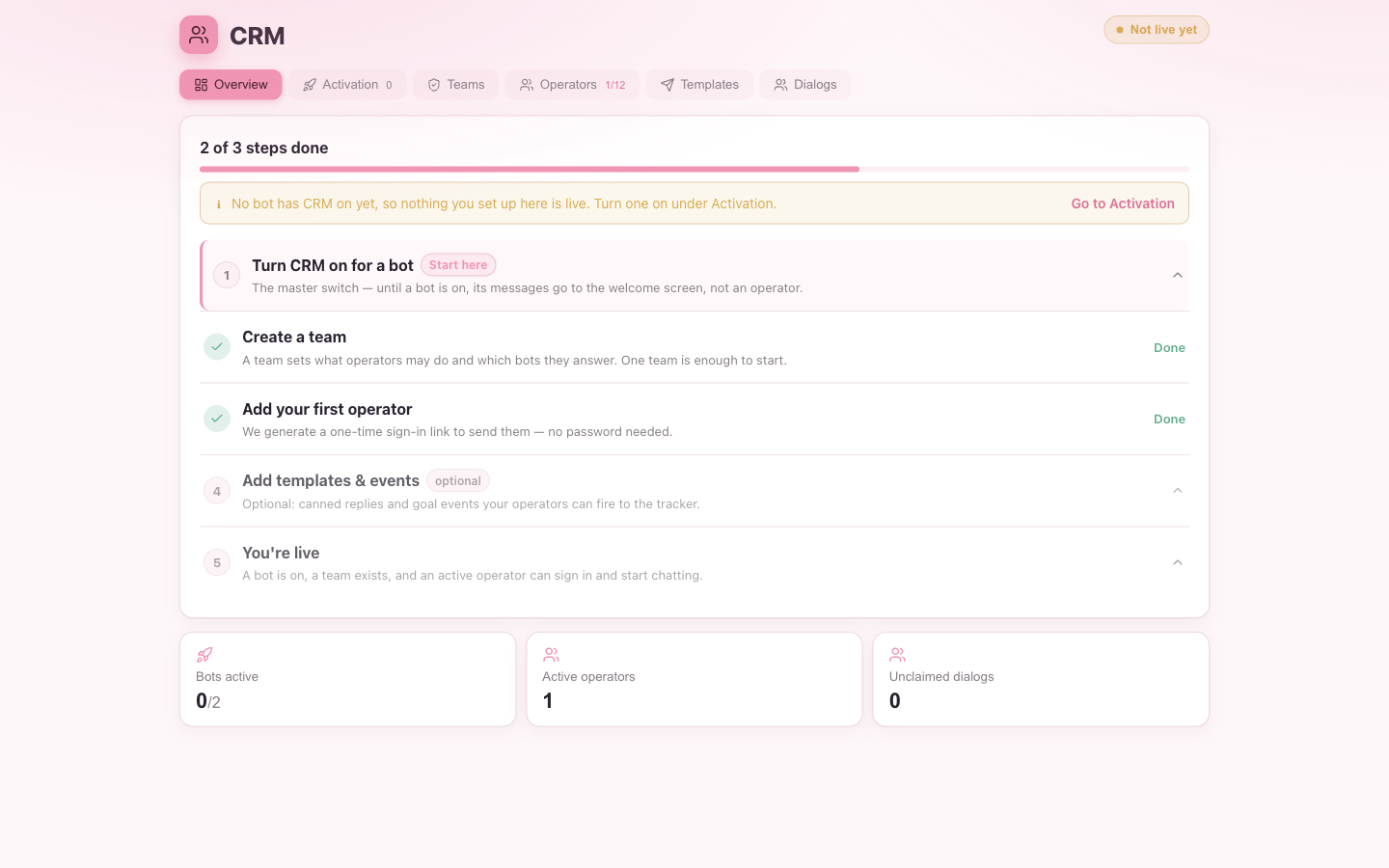
- Turn CRM on for a bot — the master switch (under Activation). Until at least one bot is on, nothing you configure is live; the Overview shows an amber reminder.
- Create a team — a permission set plus the bots its operators may answer. One team is enough to start. See Teams & operators.
- Add your first operator — we mint a one-time sign-in link to send them; no password needed. See Teams & operators.
- Add templates & events (optional) — canned replies and goal events your operators can use. See Templates & events.
Once a bot is on, a team exists, and one active operator can sign in, you’re live — the checklist disappears and the Overview turns into a dashboard.
Activation — the master switch
Open the Activation tab to see every bot with a CRM on / off switch. Turning a bot on means its inbound messages start landing in the operator inbox instead of the welcome screen.
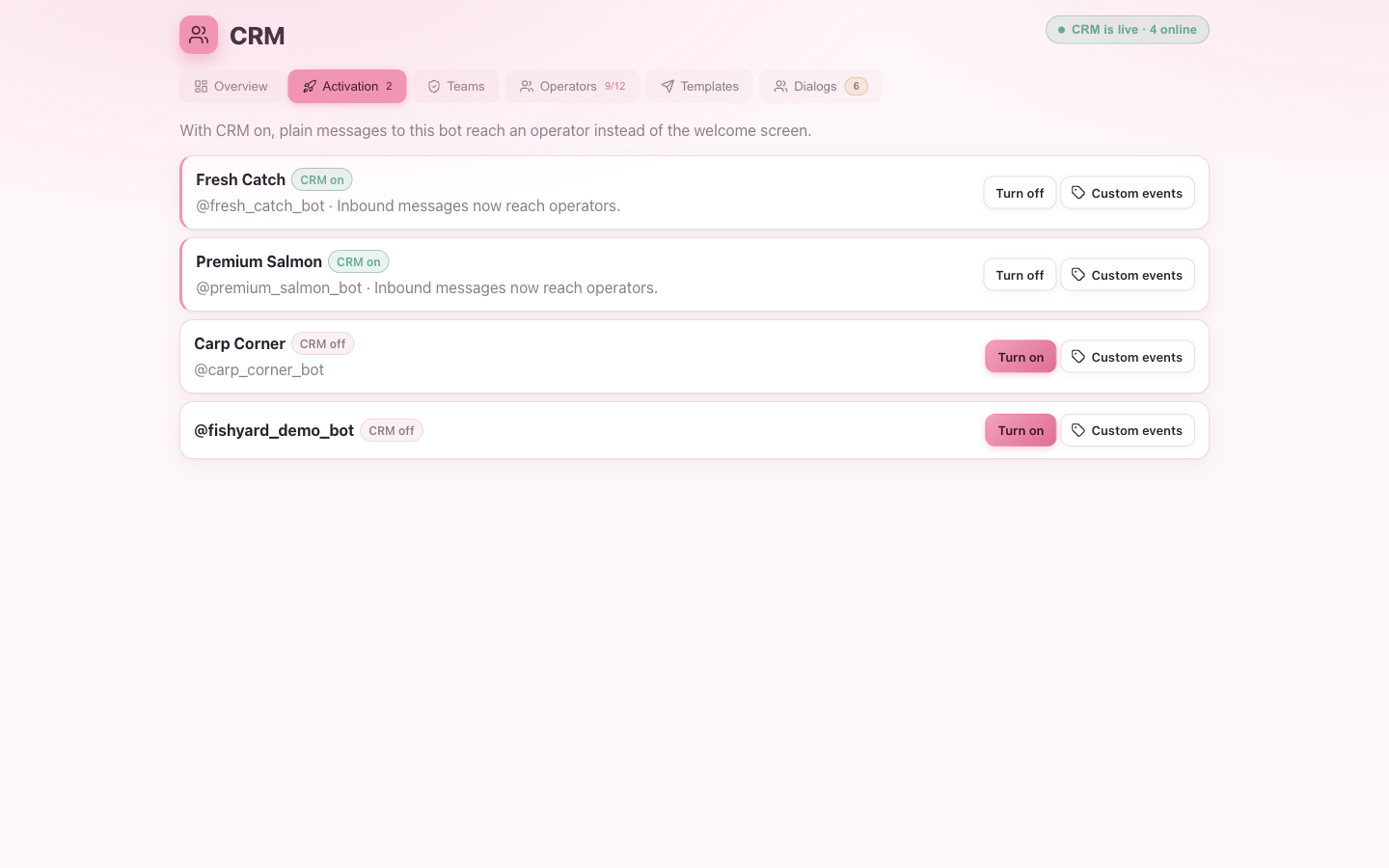
You don’t have to enable CRM on every bot — leave a bot off and it keeps behaving exactly as before. Each bot also has a Custom events button here; those are covered in Templates & events.
The live Overview
Once you’re live, the Overview becomes your at-a-glance panel: a status pill
(CRM is live · N online), three tiles (bots active / active operators / unclaimed
dialogs), and team statistics over a date range you choose.
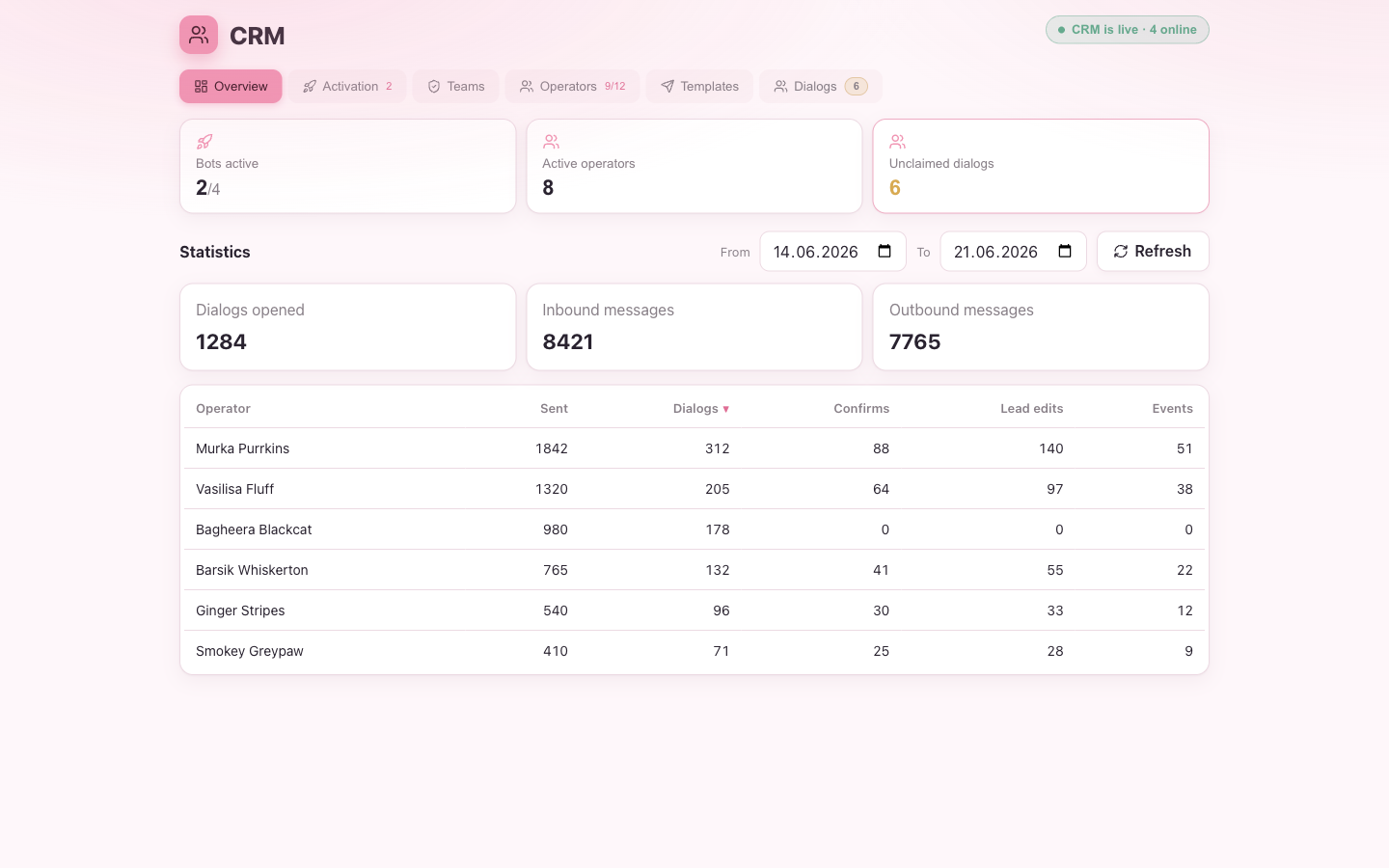
The statistics table shows, per operator, how many messages they sent, dialogs they handled, join requests they confirmed, lead edits they made, and events they fired — so you can see who’s carrying the stall.
What the CRM does and doesn’t do
The CRM is a focused support inbox — claim a chat, reply (with templates if you like), optionally confirm a group join, fire a goal event to your tracker, and close. It is a companion to your tracker, not a replacement:
- It chats with subscribers and can fire conversions to your tracker by click id (see custom events).
- It does not track registrations/deposits or aggregate customer cards — that stays the job of your tracker.
Where to go next
- Teams & operators — build your team, add operators, oversee dialogs.
- Templates & events — canned replies and goal events for bots.
- Operator guide — the day-to-day operator workspace.
- Team-lead & admin guide — for operators who run a team.