Campaigns
A campaign ties a bot, a tracked chat, your welcome creative, and your postback URLs together — and gives you the deep link to send traffic to. Everything a subscriber does after clicking that link is tracked.
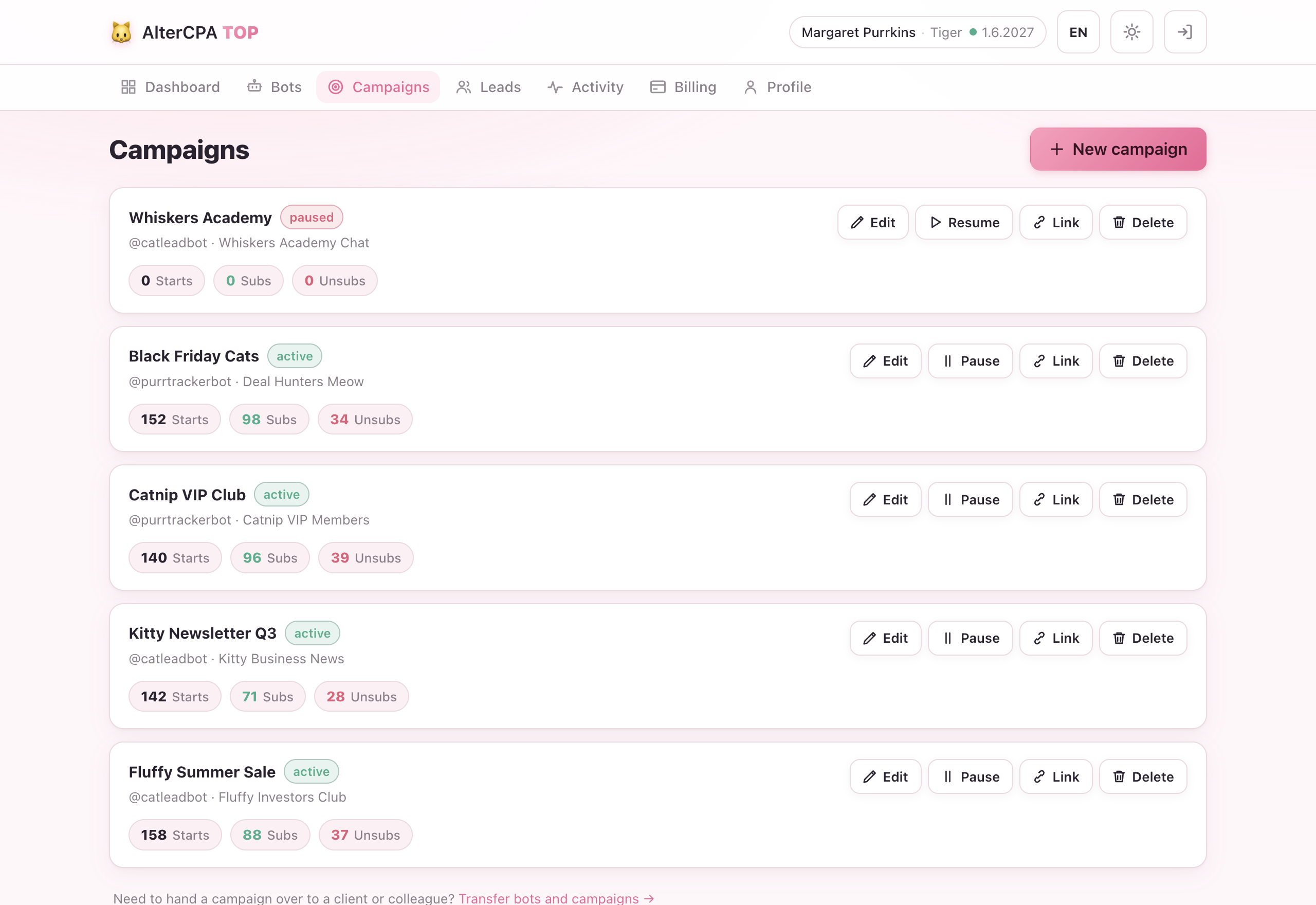
The campaign editor
Open Campaigns → Create campaign (or click a campaign name to edit it).
1. Bot
Pick one of your connected bots. The bot must be an admin of the chat you want to track — if your bot isn’t promoted yet, go to Bots first.
2. Chat
After you pick a bot, only chats where it is an admin are shown. If a chat is already used by another active campaign it won’t appear — each active campaign tracks a unique bot × chat pair.
Once a chat is selected (when editing an existing campaign), the editor shows the chat’s description and a public/invite link with an Open button, so you can jump straight to the tracked channel or group. If there’s no public link yet, you’ll see a hint to either give the bot the invite-link admin right or make the chat public.
3. Welcome message
What the subscriber sees as soon as they start your bot.
- Text — supports Telegram Markdown:
*bold*,_italic_,[link text](url),`code`. It also accepts the same macros as your tracking URLs — put{click}inside a[link](…)to drop a per-subscriber tracking link right in the greeting, not just on the button. Keep it friendly. - Image / video — optional. Upload from your device (stored on our servers,
not as a Telegram
file_id). - CPA button — an optional inline button below the message. Fill in a
caption (button label) and a URL. The URL can contain macros —
the macro helper shows you the full list. The most common one is
{click}, which inserts the subscriber’s click id so your tracker can match the impression to the conversion.
Want a multi-step welcome? Switch the Welcome section from a single message to a guided flow of several screens with their own media and buttons. It’s a paid feature — see Message screens.
4. Postback URLs
Five URL templates — one per lead event. When that event fires, we substitute your macros and fire a GET request to the URL.
| Field | When it fires |
|---|---|
| Start (click) | Subscriber pressed Start in the bot |
| Request | Join request submitted (approval-required chats) |
| Approve (subscribe) | Subscriber joined / request approved |
| Cancel (unsubscribe) | Subscriber left voluntarily (within the unsub window) |
| Trash | Subscriber was kicked or banned (within the unsub window) |
Leave any field empty to skip that event’s postback. Leave all five empty to fall back to your global postbacks.
The macro helper button inserts the most common macros. The tracker preset dropdown pre-fills all five fields with a ready-made template for AlterCPA Lite (or another supported tracker) — just swap in your own credentials.
→ How tracking works has the full macro reference and delivery rules.
5. Unsub window
How long after joining a leave still counts as a “cancel” or “trash” and fires a postback. After the window the lead still moves to that status, but no postback is sent.
| Option | Window |
|---|---|
| 1 day | 86 400 s |
| 7 days | 604 800 s |
| 30 days | 2 592 000 s |
| Custom | Any duration in days |
| Always | No expiry — every leave fires a postback forever |
Join requests
If your channel or group is set to approve new members, the campaign has a Automatically accept all join requests switch:
- On — the bot admits every incoming request instantly, no operator needed. If CAS guard is enabled it still screens out listed spammers before the request is accepted.
- Off (default) — requests are held so an operator can approve them by hand in the Operator CRM. This is the “Confirm” step operators use to decide who gets in.
6. Lead notifications
Get a Telegram message from the service bot when a lead changes status in this
campaign. Only paid traffic (leads from a /start) triggers notifications
— organic joins are never notified.
| Level | What you receive |
|---|---|
| Off (default) | Nothing |
| Successful joins only | A message when a lead reaches Approve |
| Joins + new leads | Approve + new leads (Start — bot start) |
| All status changes | Start, Request, Approve, Cancel, Trash |
The global Lead notifications toggle in your Profile must also be on for messages to arrive.
Triggered broadcasts (paid)
The campaign editor also has a Triggered broadcasts section — five cards, one per lead status — for auto-sending a follow-up message to a lead a while after it reaches that status (a warm-up, a win-back, a reminder). It’s a paid feature and is covered in full on the Broadcasts page.
7. Save & get the deep link
After saving the campaign the deep link is revealed:
t.me/YourBot?start=CAMPAIGNCODE-{click}Replace {click} with your tracker’s click macro — for example {subid} in
Keitaro or {clickid} in Binom. In AlterCPA Lite the macro is {click}. The
result is the URL you put in your ad or traffic source.
AlterCPA Lite only: if you’ve connected your tracker in Profile, a Create flow button also appears next to the deep link. Clicking it creates a Lite flow for you automatically and shows the ready-to-use flow URL.
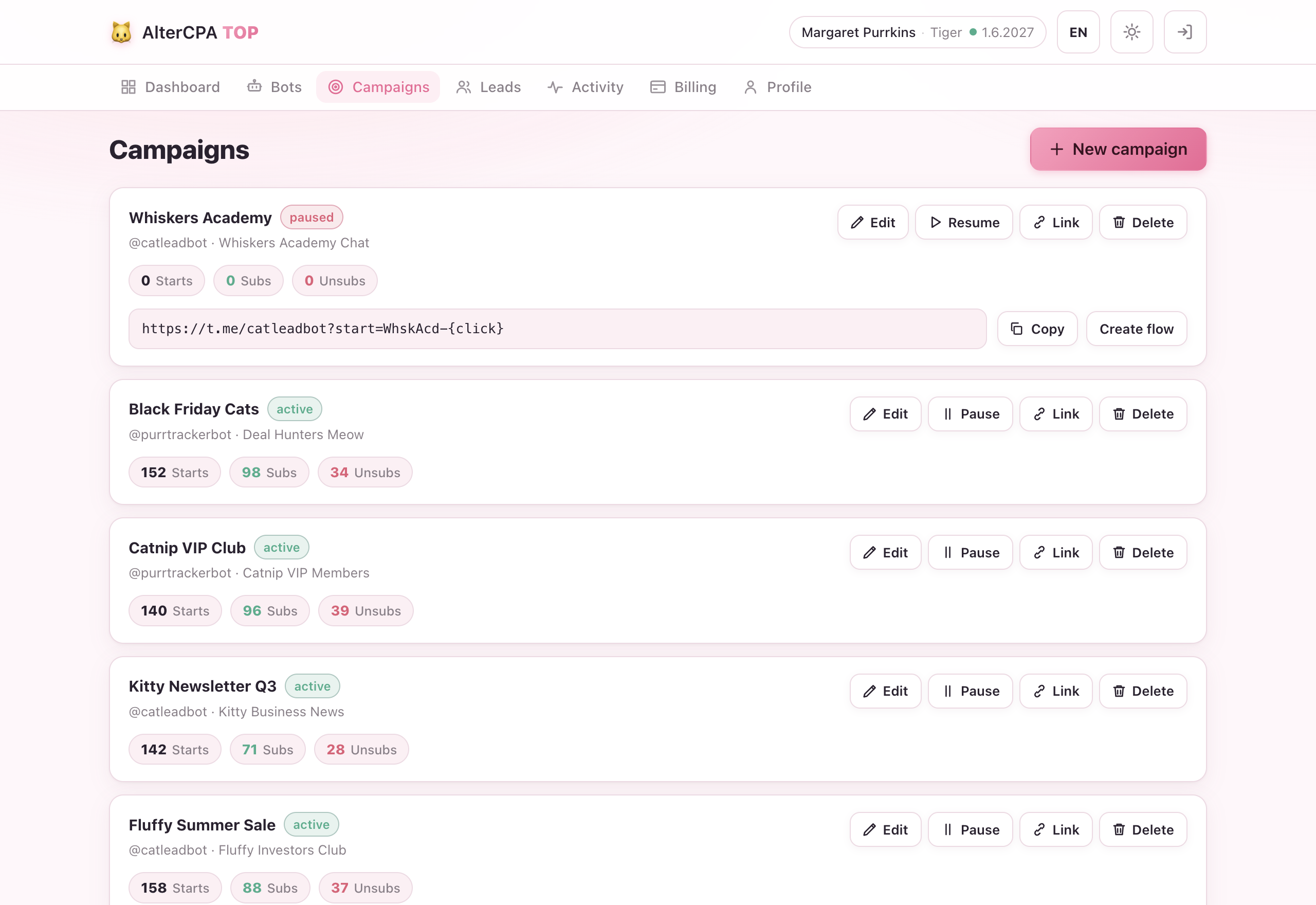
Campaign card actions
Each campaign card groups its buttons by purpose:
- Manage — edit, pause/resume, delete.
- Distribute — reveal the deep link, and (AlterCPA Lite) open the tracker’s flow statistics.
- Analyse — jump to this campaign’s Leads, Statistics, and Activity, each pre-filtered to the campaign.
Campaign lifecycle
| Action | Effect |
|---|---|
| Pause | Stops tracking new starts and joins. Deep link stays valid but the bot won’t create new leads until you resume. |
| Resume | Re-activates the campaign. |
| Delete | Soft-deletes the campaign. Leads, stats, and history are kept. The campaign disappears from the list but its data remains. |
Move a campaign to another bot? You can re-point a campaign onto a different bot of yours (as long as that bot is admin of the same chat) from the Transfer page — no need to rebuild it.
Campaign limit
Your plan sets the maximum number of active (non-deleted, non-paused) campaigns.
Trying to create one past the limit returns an error: limit response. To add
more, either delete or pause an existing campaign, or
upgrade your plan.
A downgrade never auto-pauses existing campaigns — you just can’t create new ones until you’re back under the limit.