Leads
A lead is one conversion: one subscriber inside one campaign. The Leads table shows you every lead across all your campaigns with its current status, click id, and timestamps.
What a lead is
A lead is created the moment a subscriber presses /start in your bot with
a campaign deep link. From that point on we track them through the join and
any later leave — all under one lead record.
One lead per subscriber × campaign. If the same person starts the bot
again — say, they came from a new ad — we don’t create a second lead. Instead
we update the existing one with the newest click id and re-fire the wait
postback so your tracker picks up the new click.
The five statuses
The interface shows a friendly label for each status; the code in brackets is the underlying event name used in postbacks and the API.
| Status | What it means |
|---|---|
Start (wait) | Pressed Start; hasn’t joined yet. |
Request (hold) | Submitted a join request; waiting for admin approval (approval-required chats only). |
Approve (approve) | Joined the chat, or their request was approved. |
Cancel (cancel) | Left the chat voluntarily (within the unsub window). |
Trash (trash) | Was kicked or banned (within the unsub window). |
A leave after the unsub window still moves the lead to cancel or
trash, but no postback is sent. The unsub window is set per campaign —
see Campaigns.
Re-joins
If a lead comes back after leaving:
- They re-join → the lead returns to approve and the
approvepostback fires again. - They start the bot with a new click → the click is overwritten and
waitfires again.
No new lead is created either way. Your postback history reflects the full history of transitions on the one lead.
Organic joins = no lead
If a subscriber joins your chat without ever starting the bot, there’s no click id, so no lead is created and no postback is fired. The join is still recorded in the Activity journal — but it won’t appear in the Leads table.
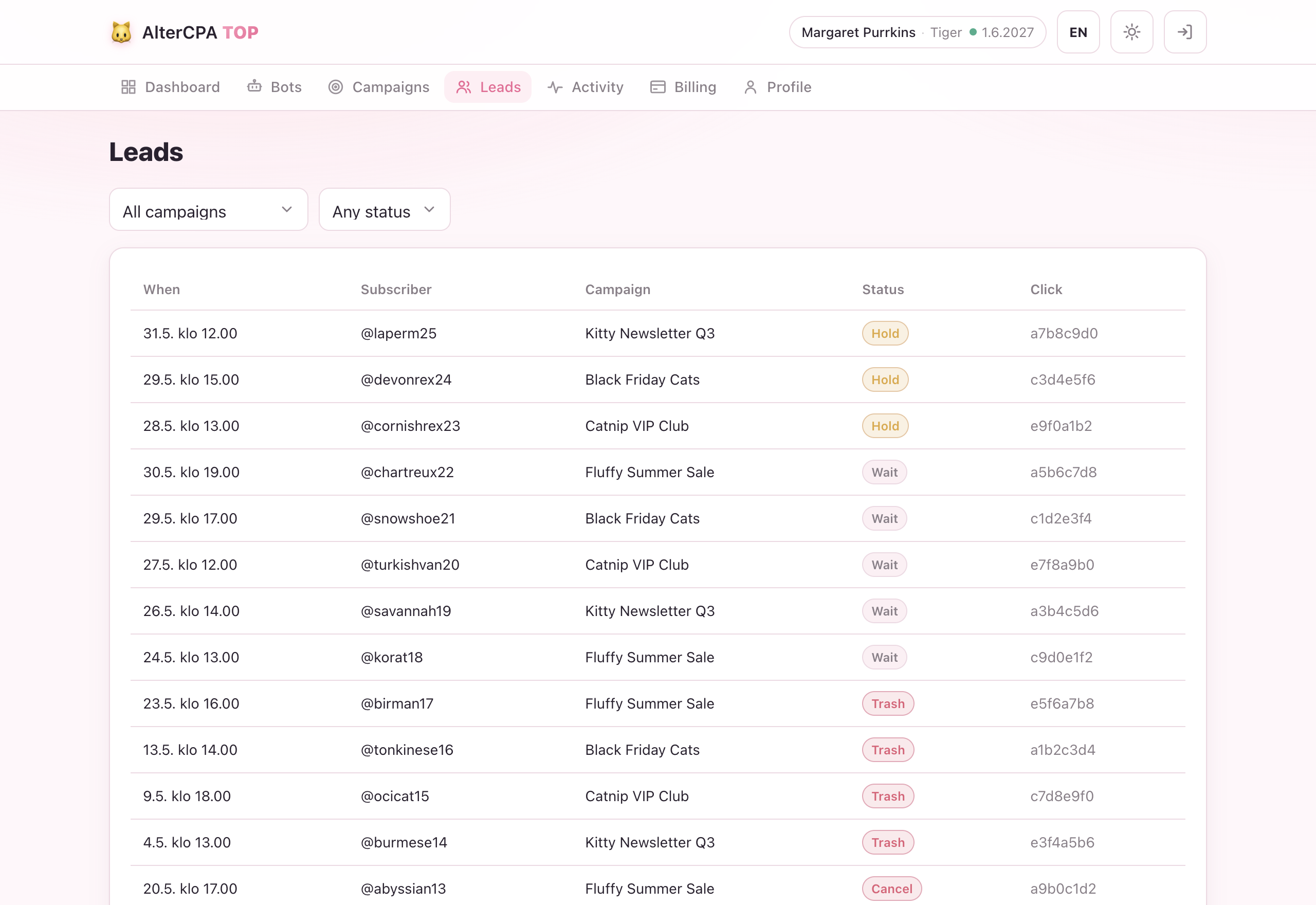
The leads table
Open Leads from the main menu.
Filters:
| Filter | Options |
|---|---|
| Campaign | All campaigns, or a specific one |
| Status | All, Start, Request, Approve, Cancel, Trash |
| Date range | Pick start/end by click date |
Columns:
| Column | Content |
|---|---|
| Subscriber | Telegram user id (and @username if available) |
| Click | The click id from the deep link |
| Status | Current lead status |
| Started | When the lead was created (first /start) |
| Joined | When they reached approve |
| Left | When they reached cancel or trash (if applicable) |
Export — click the Export CSV button to download the filtered view. The export includes all columns plus the campaign code.
Messaging your leads
Because every lead opened a dialogue with your bot, you can message them back — automatically when they reach a status, or as a one-off blast to a whole segment. See Broadcasts.