Broadcasts
Broadcasts let you message your subscribers straight inside the bot’s chat
with them. Every lead pressed /start themselves, so every lead is a reachable,
opted-in recipient — this is something a tracker simply can’t do on its own.
There are two kinds of broadcast, and they share one message format:
| Kind | When it sends | To whom |
|---|---|---|
| Triggered | Automatically, a while after a lead reaches a status | The single lead that just changed status |
| Manual | When you press Start | Every lead matching your filters |
Broadcasts are a paid feature. On a plan without broadcasts the section shows a short teaser and the controls are locked — see Billing & tariffs to enable it.
The message
Both kinds send the same simple Telegram message:
- Text — Telegram Markdown (
*bold*,_italic_,[link](url),`code`). It becomes the caption when you attach media. The same macros as on the button work in the text too — put{click}in a[link](…)for a per-recipient tracking link inside the body. - Image / video — optional, uploaded from your device.
- Button — an optional inline button: a caption (label) and a URL.
The URL may contain the same macros as your campaign’s CPA button (
{click},{campaign},{subscriber}, …), so a click from a broadcast registers in your tracker just like a click from the welcome message. - Unsubscribe button — added automatically to every broadcast. You don’t configure it and you can’t remove it.
Opt-out is automatic and permanent
The 🚫 Unsubscribe button is appended to every broadcast on its own row. When a subscriber taps it, they immediately stop receiving all broadcasts from that campaign — triggered and manual alike — and we confirm it to them. If a subscriber blocks the bot, that counts as the same thing: we never message them again.
This keeps your bots in good standing and is not optional — honouring opt-outs is what keeps the open-dialogue channel usable at all.
Triggered broadcasts (automatic follow-ups)
A triggered broadcast fires on its own when a lead reaches a status — a warm-up after the first Start, a win-back after someone leaves, a reminder for a pending join request. You set them up inside the campaign editor, so each campaign has its own follow-ups.
Open a campaign for editing and scroll to Triggered broadcasts. You’ll see a strip of five cards, one per lead status:
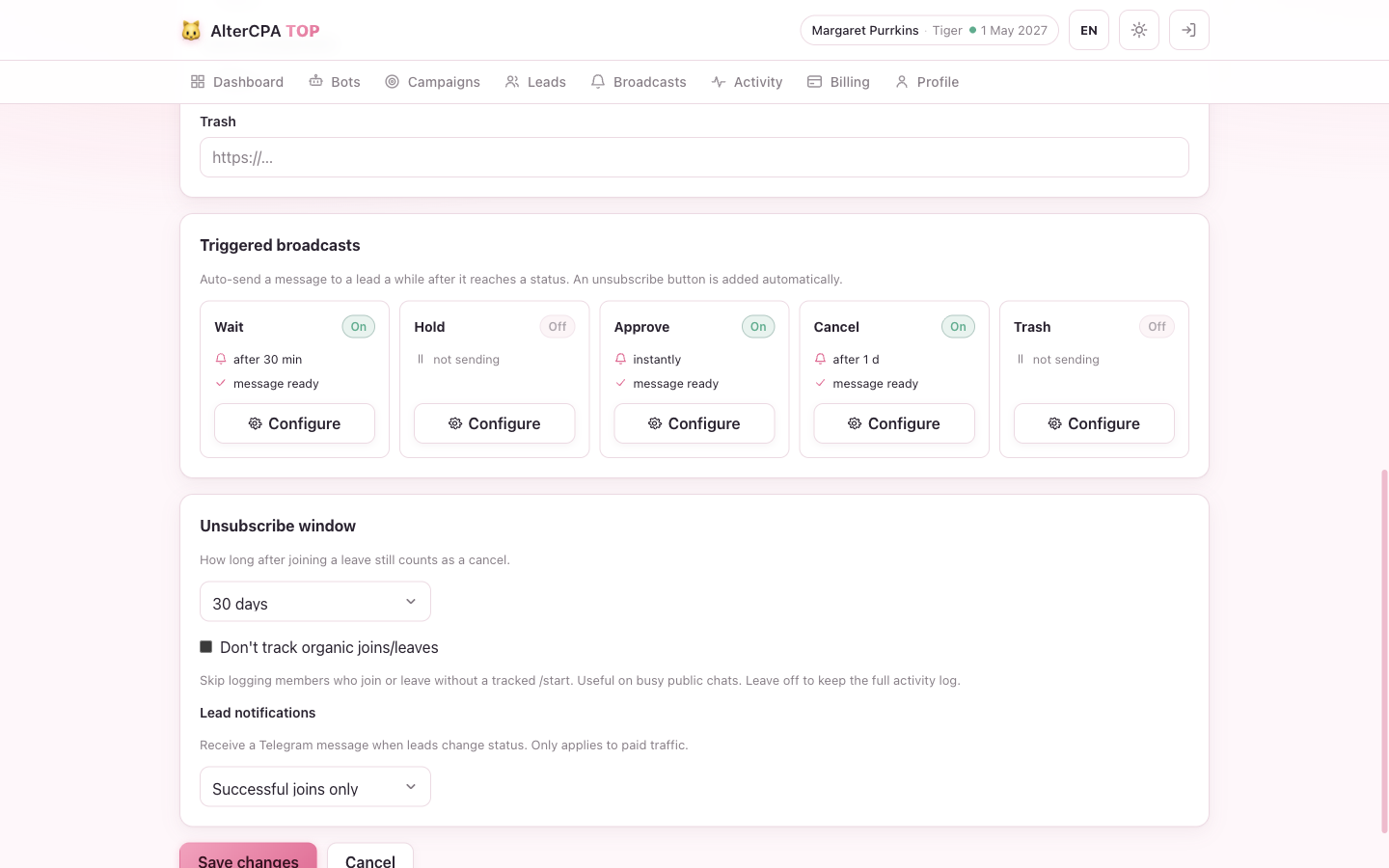
| Card | Fires when the lead… |
|---|---|
| Wait | …presses Start (the warm-up message) |
| Hold | …submits a join request that needs approval |
| Approve | …joins / gets approved |
| Cancel | …leaves voluntarily |
| Trash | …is kicked or banned |
Each card shows whether it’s on, the configured delay (“instantly”, “after 30 min”, “after 1 d”), and whether a message is ready. Press Configure to open the message editor for that status.
In the editor you set:
- Send this message — the on/off switch for this status.
- Send after (minutes) — how long to wait after the lead enters the status
before the message goes out.
0sends as soon as it can. - The text, optional media, and optional button (caption + URL).
Send to myself — the editor has a button that delivers the message to your own Telegram (via the service bot) so you can check the wording before going live. The preview shows text and the button only — media isn’t included.
How re-sending works
A triggered message arms every time a lead genuinely enters a status. If a lead leaves and re-joins, the Approve follow-up fires again on the new join. Re-pressing Start without changing status (e.g. a repeat click) does not re-arm the Wait message, so repeat clicks can’t spam your warm-up.
If a lead moves on before its scheduled message is sent (say it joins during the Wait delay), the pending message for the old status is cancelled — only the follow-up for the lead’s current status goes out.
Triggered broadcasts are not capped by the daily send limit — only manual broadcasts are.
Manual broadcasts (one-off bulk sends)
A manual broadcast sends one message to every lead matching your filters — an offer, an announcement, a win-back to everyone who unsubscribed last month. Open Broadcasts from the main menu.
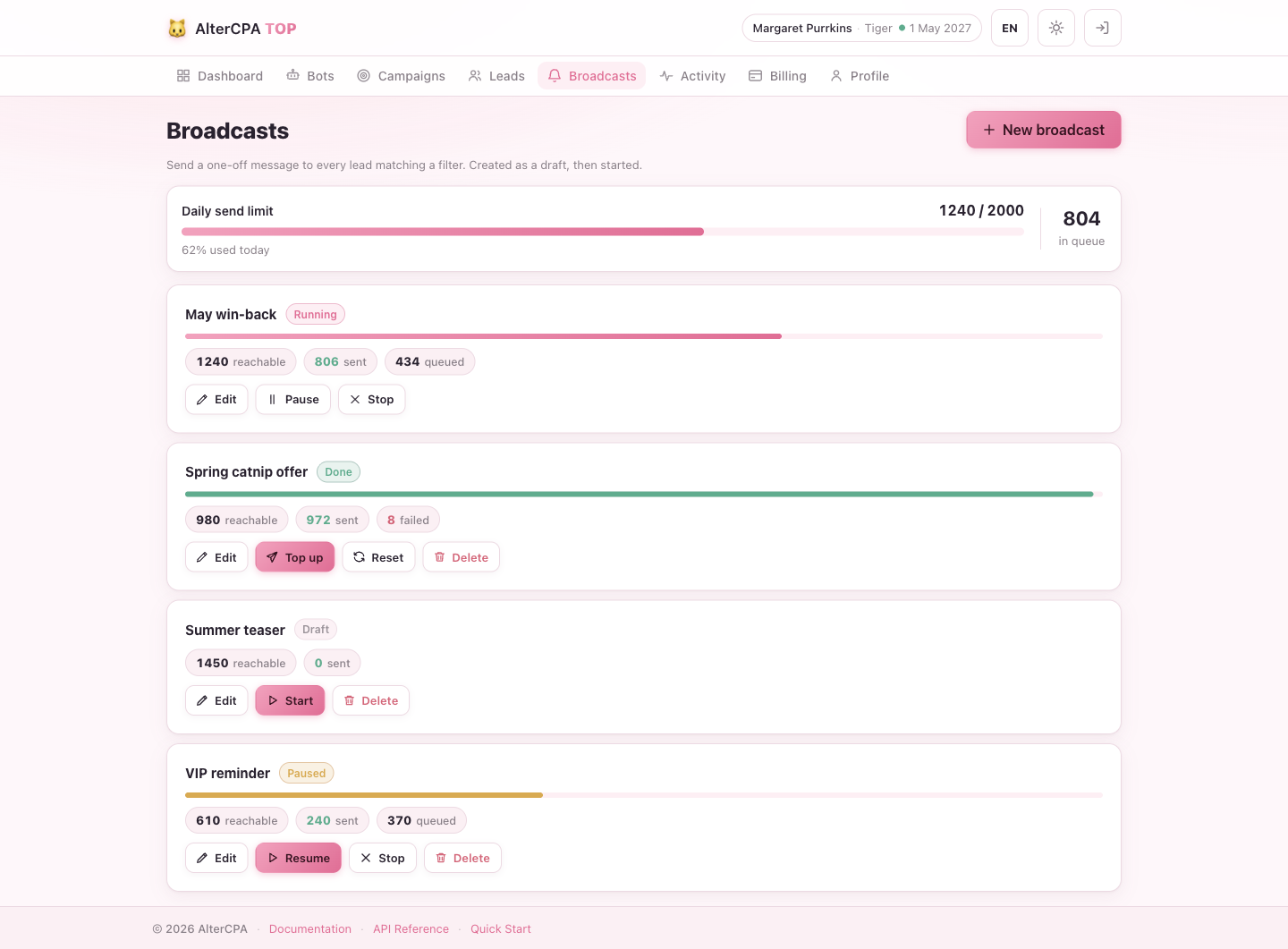
Create and configure
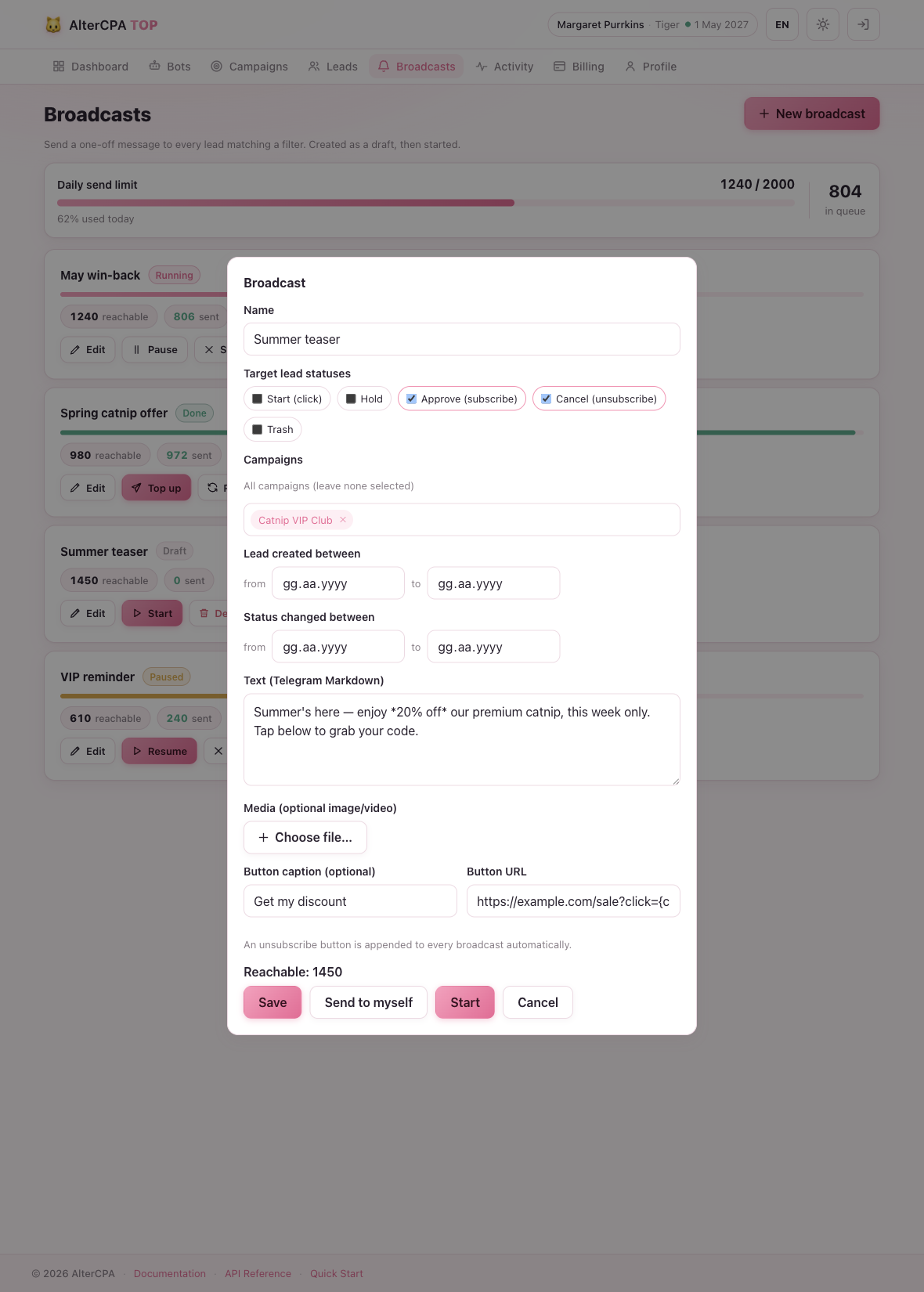
Press New broadcast to create a draft, then fill it in:
| Field | What it does |
|---|---|
| Name | For your own reference (e.g. “May offer”) |
| Target lead statuses | Which statuses to send to — tick any of Start / Hold / Approve / Cancel / Trash |
| Campaigns | Limit to specific campaigns; leave none selected to mean all of your campaigns |
| Lead created between | Only leads first seen in this date range |
| Status changed between | Only leads whose status last changed in this date range |
| Text / media / button | The message itself |
As you edit, the editor shows a live Reachable: N count — how many leads currently match. Press Save to keep the draft, or Send to myself to preview the message in your own Telegram first.
Start it
Press Start to enqueue the matching leads and begin sending. The message body is resolved when each message is actually sent, so an edit you make to a running broadcast still affects the messages that haven’t gone out yet.
Lifecycle and actions
A broadcast moves through these states, shown as a coloured chip on its card:
| Status | Meaning |
|---|---|
| Draft | Created, not started yet |
| Running | Currently sending |
| Paused | Sending halted; pending messages kept |
| Done | Everyone matching has been sent |
| Cancelled | Stopped; remaining messages dropped |
The buttons on each card depend on the state:
| Action | Available on | Effect |
|---|---|---|
| Edit | Any state | Open the editor (allowed even while running) |
| Start | Draft | Begin sending to the whole audience |
| Pause | Running | Halt sending; pending messages are kept |
| Resume | Paused | Continue exactly where it stopped |
| Stop | Running / Paused | Cancel and drop the remaining messages |
| Top up | Done / Cancelled | Send only to leads this broadcast hasn’t reached yet |
| Reset | Done / Cancelled | Clear the sent history so the next Start sends to everyone again |
| Delete | Anything except Running | Remove the broadcast |
Top up is the “finish the job” button: if new leads have matched your filters since the last run, it sends only to those, never double-messaging anyone. Reset is the opposite — it forgets who’s been reached so you can re-send the broadcast to the entire audience from scratch.
Counters and progress
Each card shows live counters as the send pool works:
- reachable — how many leads currently match (the audience size)
- sent — delivered successfully
- queued — waiting to be sent
- failed — couldn’t be delivered (e.g. the user blocked the bot)
A coloured progress bar tracks delivery (pink while running, amber when paused, green when done). The list refreshes itself every few seconds, so you can watch a broadcast drain in real time.
Send-time safety
Because a manual broadcast is a snapshot of who matched when you pressed Start, we re-check each lead right before sending: if it no longer matches your filters (it changed status, or unsubscribed) the message is quietly skipped — it counts as neither sent nor failed, and the lead stays eligible for a later Top up. You won’t nag someone who converted in the meantime.
The daily send limit
At the top of the Broadcasts section a gauge shows your manual-send budget:
- Daily send limit — how many manual messages you’ve sent today out of your plan’s daily cap. Some plans are unlimited (no cap).
- in queue — how many messages (across all broadcasts) are waiting to be sent right now.
Only manual sends count toward the daily limit; triggered follow-ups are unlimited. If a broadcast is bigger than your remaining budget for the day, the overflow simply waits and continues sending the next day rather than failing.
Messages are also paced per bot to stay within Telegram’s limits, so a large broadcast spreads out smoothly instead of going out all at once.
When sending pauses on its own
If your subscription lapses, your bots go to sleep and all sending stops — both triggered and manual. When you renew, triggered follow-ups resume naturally on new status changes, and any in-flight manual broadcast picks up draining where it left off. See Billing & tariffs for how grace and sleep work.